New in OpponentBook: physical tests, win-rate trends and week totals
In this article
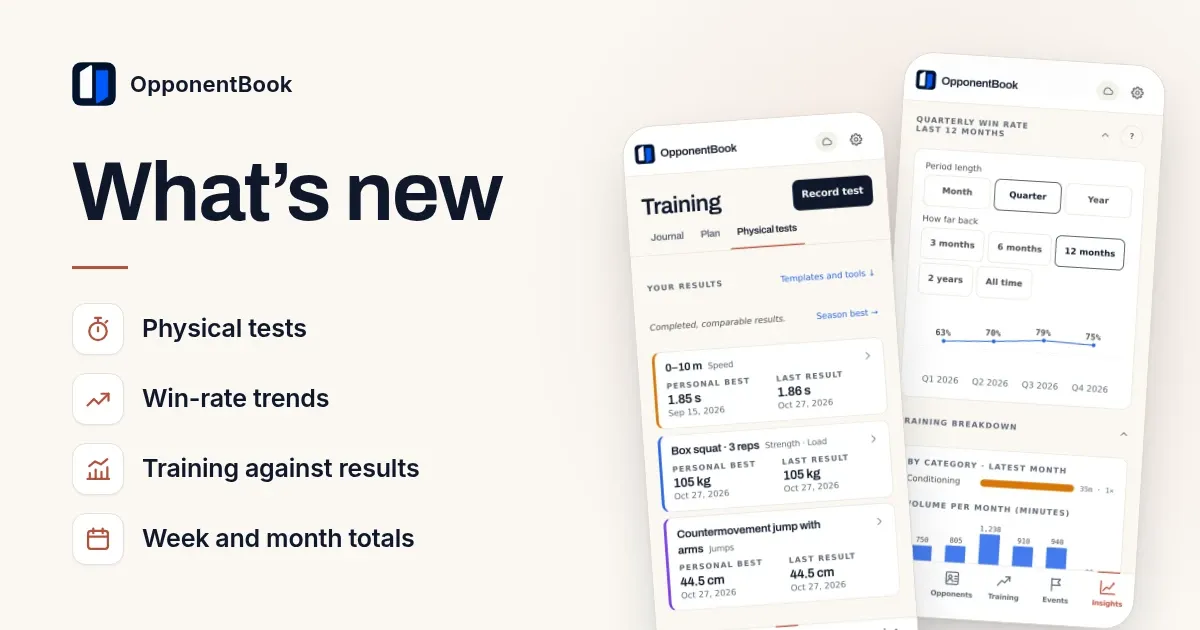
OpponentBook now has a Physical tests tab, where you record fitness tests and follow your personal bests over time. Insights can show your win rate by month, quarter or year and set it beside the training you logged, and you can log a whole week or month of training as one entry. All of it is in the web app now; on Android and iPhone, update OpponentBook to the latest version from Google Play or the App Store.
Physical tests
Training now has three tabs: Journal, Plan and Physical tests. A test is one procedure and what you measure in it — a 10 m sprint time, a jump height, the load you lift for three reps. You group tests into a template, record a session on the day you test, and the app keeps the history.
You can start from one of two templates or build your own:
- Fencing self-tests: standing long jump, chins and one or more of three endurance tests (a 15 m beep test, a 1200 m run or a 3000 m run), plus optional extras.
- Gym assessment: sprints, jumps, box squat and deadlift loads, backward medicine-ball throws, power cleans and weighted chins.
- Your own template: name each test, pick its unit, say whether a higher or a lower result is better, and decide which attempt counts — the best valid attempt, the average of the valid ones or one you choose.
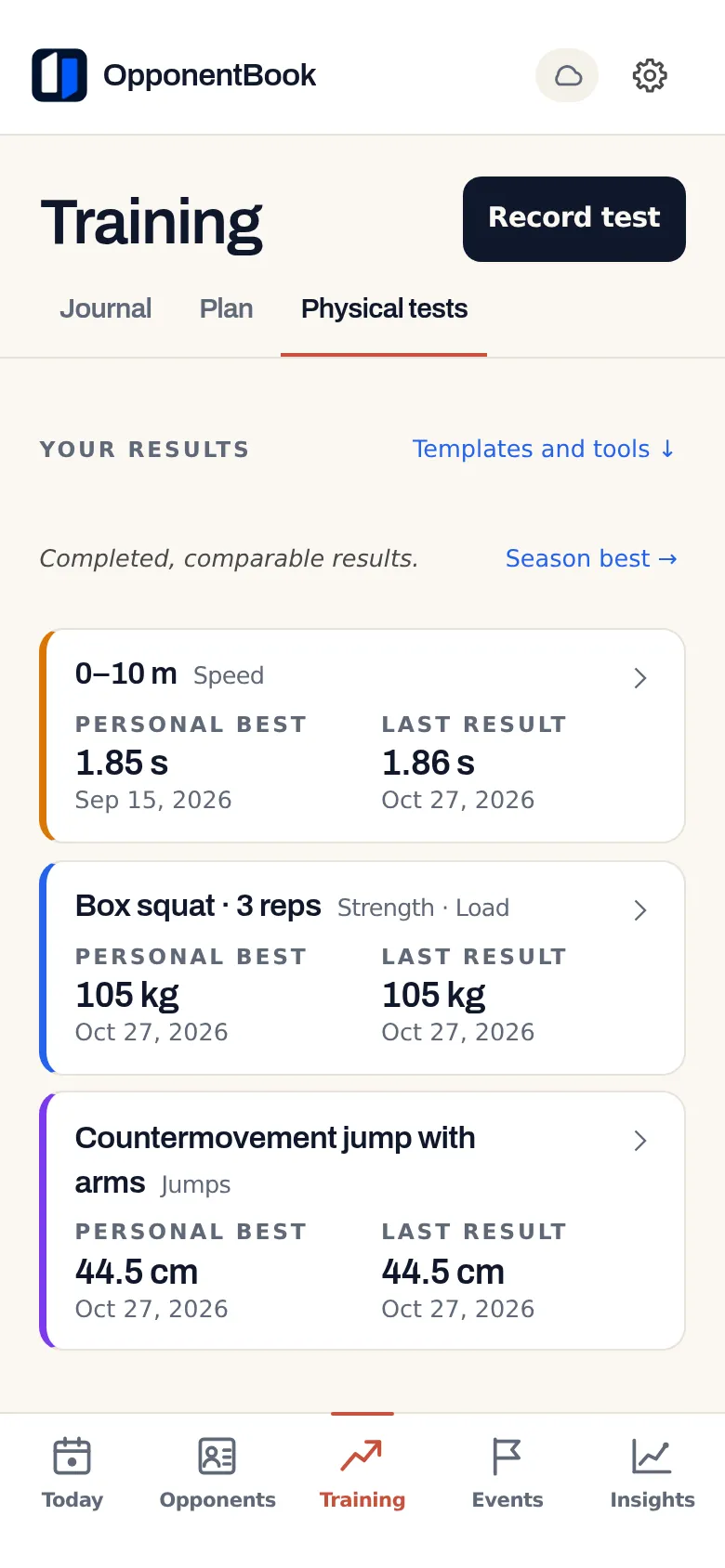
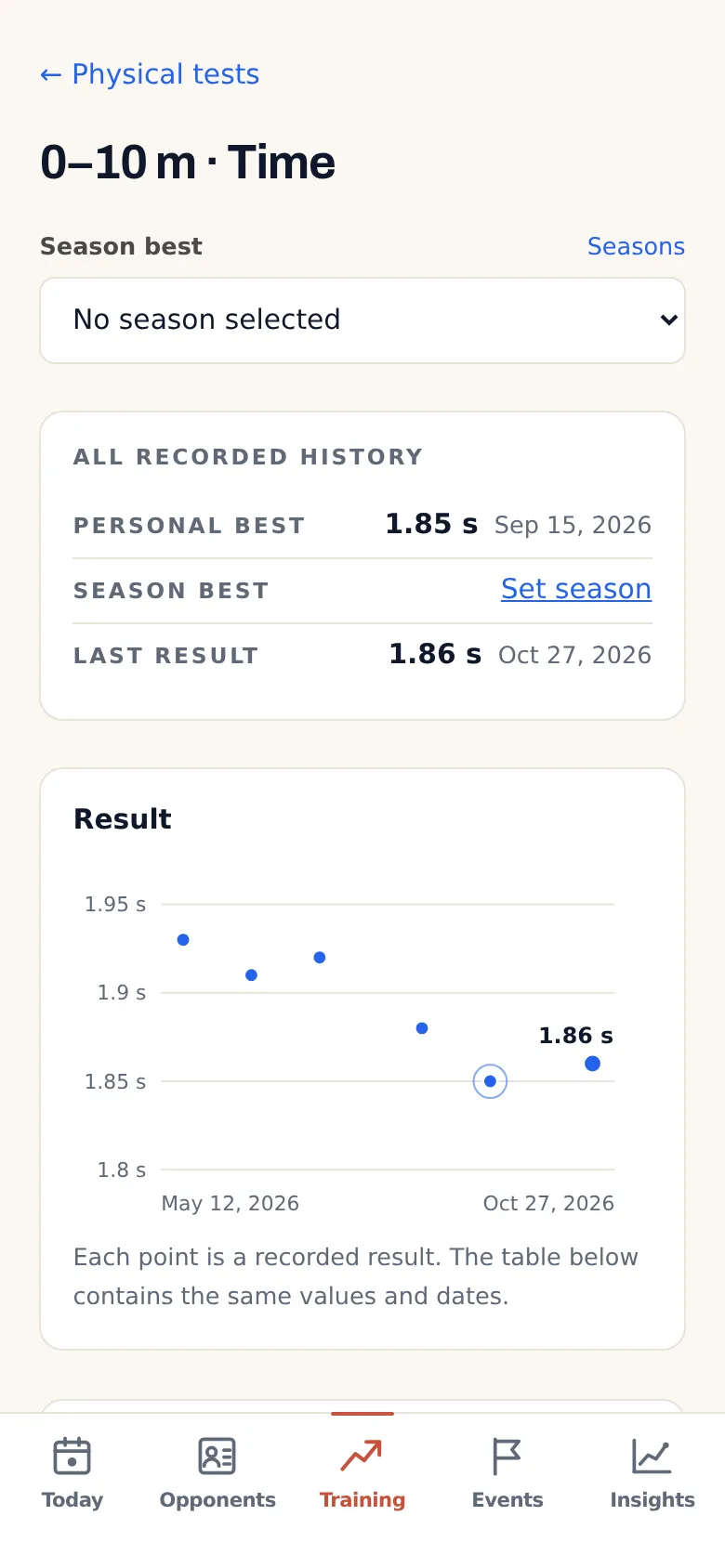
For each test, the tab shows your personal best and your last result, with dates. Open a test to see every recorded result on a chart, with a table of the same values underneath. A test you skipped stays a gap; the chart does not fill it in. Once you set the dates of your season, a season best appears as well.
Two results are only worth comparing if you did the test the same way both times — same distance, same equipment, same way of timing. Write the procedure into the test’s instructions so you can repeat it next time.
Creating, recording and importing physical tests needs Premium or a higher plan. On Free, results you have already recorded stay readable and exportable. Test results sync through the same storage as the rest of your journal and are never sent to AI features.
An optional reference index
The Fencing self-tests template comes with an optional Physical Profile Index; Gym assessment has none. The index scores power, strength and endurance from 1 to 10 against the women’s or the men’s reference scale, whichever you choose. Your birth year only selects the age-based target shown with your scores; it never changes the scores themselves. Read the result as a position on a scale you chose, not as a verdict on your fitness. You can adjust the thresholds, weights and targets, or build an index of your own.
If you tick Remember for future tests, the app saves your birth year and fills it in the next time you record a test. Changing or clearing the saved year leaves the sessions you have already recorded as they are. The saved year syncs through your storage and is left out of template files you share with a coach.
Sharing with a coach
A coach can send a whole template as an .obtest file. Everyone who imports it gets their own copy, so changes on one side do not reach the other. Your results export to PDF, Word, Excel or CSV. If your coach keeps results in a spreadsheet, you can import the Excel or CSV file — it is processed on your device, and you choose which rows are yours. There is no coach dashboard and no live sharing; everything moves as files.
Win rate by month, quarter or year
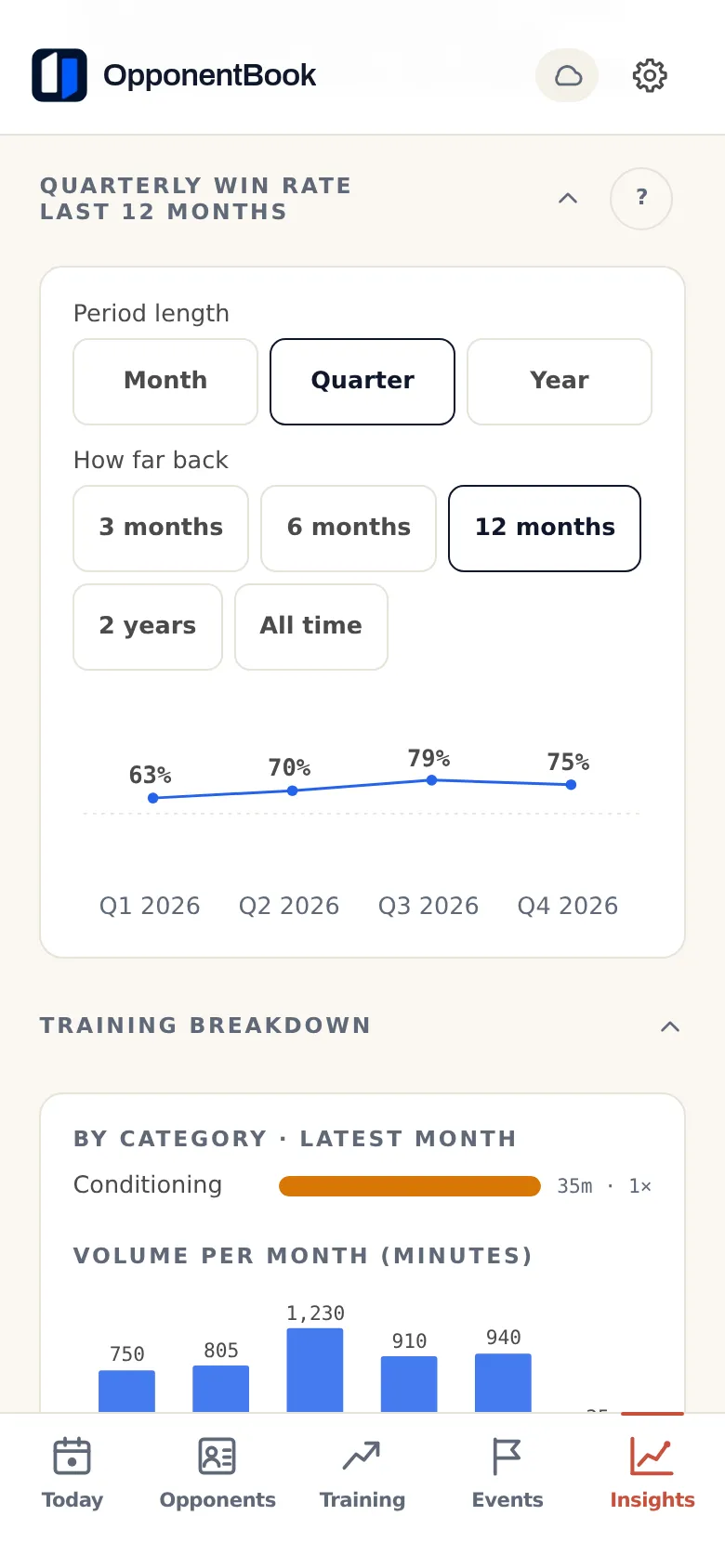
The win-rate chart in Insights used to cover six months, one month at a time. Now you choose how long each period is (a month, a quarter or a year) and how far back the chart goes, from three months to all time. Only decided matches count; draws are left out. A period with fewer than three decided matches shows its win–loss record instead of a percentage, because one or two results do not make a rate.
Training set against your results
A new Insights section, Training against results, puts the minutes you logged in each period next to your win rate in the same period. You can narrow it to particular training categories, and if a training plan covers the period, a dashed outline shows the planned sessions that have come due. Below the chart, each period becomes a dot: minutes trained against win rate.
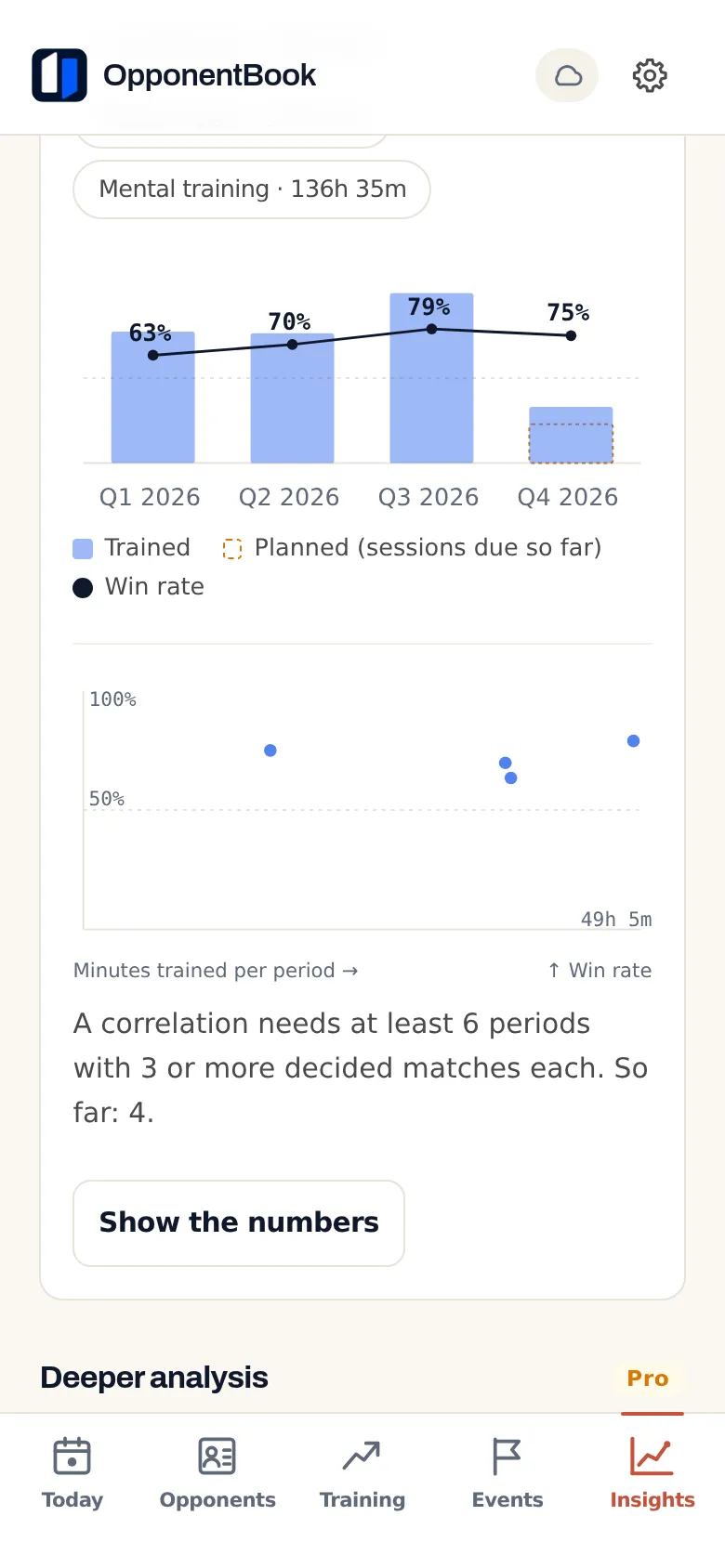
Once at least six periods each have three or more decided matches, the section adds a rank correlation (Spearman’s ρ) and says whether periods with more training also tended to have better results. That is an association across your own periods, not proof that the training caused the results — a camp before a championship, a layoff after an injury or a run of strong opponents can move both numbers at once. The chart is good for finding questions to take to your coach, not for settling them.
The win-rate trend and Training against results need Premium or a higher plan. On Pro and Max, if you include your training journal in the AI evolution analysis (an option that is off by default), the analysis now also reads your training load against your results, as a hypothesis to check and never as a verdict.
A whole week or month as one entry
Not everyone logs every session. When you log training, you can now choose Session, Week or Month under Log as. A week or month total is one entry with hours per training type, average effort and notes, and each block can also record how many sessions it covered. In the comparison with your training plan, it counts as time trained, and Insights spreads its minutes evenly over the days it covers. This works on every plan, Free included.
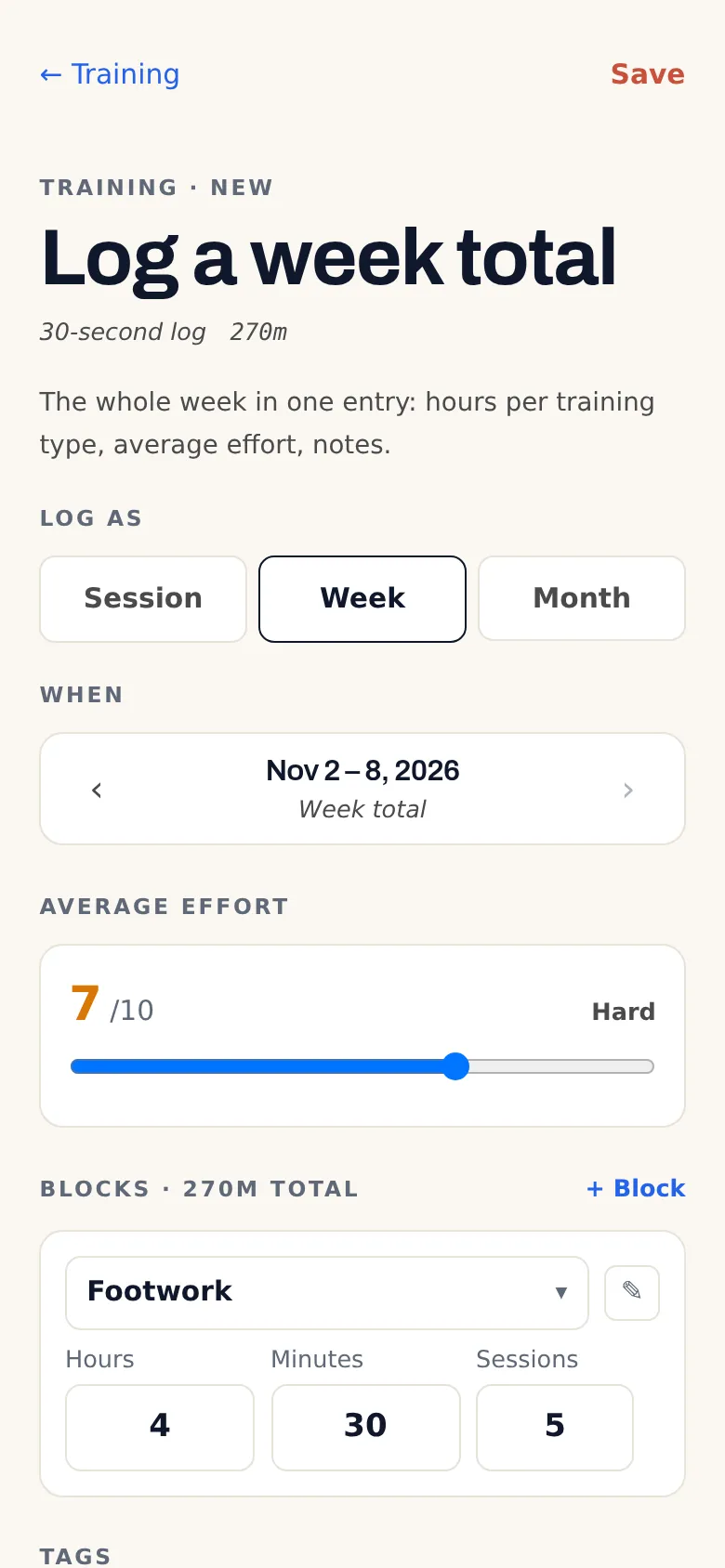
A single training block can now run up to 20 hours; the limit used to be five.
Smaller changes
- Opponent birth year: you can record an opponent’s birth year instead of an age range. The profile shows the year and the age the opponent reaches this calendar year, so before their birthday it can be one higher than their actual age. Neither the birth year nor the age range is sent to AI.
- Video uploads: when you attach a video to a saved match, the upload starts within seconds. An interrupted upload picks up where it stopped instead of starting again, and the progress shows what has actually been sent.
- Android fixes: videos can now be watched full screen, and dictation records once you have allowed the microphone.
- Settings: the screen is now split into four sections — Your data, Preferences, Privacy and Account.
- Icons and vibration: the sport icons have been redrawn, and on a phone you feel a light vibration when you place a pin, save a new match or save a test session.
- Large screens: in a browser window at least 1024 pixels wide, or on a large tablet held sideways, your opponent list stays next to the opponent you open.
Sign-in, storage and billing still differ a little between platforms; the iPhone and iPad post and the Android post explain how.
Try Premium for seven days
Eligible accounts can try Premium free for seven days. The trial starts when you confirm the subscription, not when you sign up, and it includes a fixed AI allowance for the whole week. On the web you add a payment method when you start.
Unless you cancel before the trial ends, it continues as a paid Premium subscription. Where to cancel:
- Web: Settings → Manage subscription
- iPhone: your App Store subscription settings, at least 24 hours before the trial ends
- Android: your Google Play subscription settings
What each plan includes is on the pricing page.
Where your test results are stored
Physical tests are part of your journal. Your journal syncs through the storage you chose, and OpponentBook’s account database holds no copy of it. When you request AI processing, the content it needs passes through an OpponentBook server to the AI provider and is not kept there afterwards. Optional end-to-end encryption encrypts journal records before upload; photos, video and provider-visible file metadata are outside it. Keep both the encryption password and the recovery code — if you lose both, neither OpponentBook nor your storage provider can restore the encrypted records. The privacy guide explains how these parts fit together.
Start with the tests you already do
Open Training → Physical tests, start from a template or build your own, and enter the results of the tests you did most recently. The next time you test, your personal best and last result will be there to compare against.