OpponentBook for Android: keep your match notes close at hand
In this article
OpponentBook is available on Google Play for Android 7.0 and later. You can use your existing account and journal, or start with a new opponent page.
The Android app and the web app share one journal. Storage, sign-in and payment options differ, so check the details below before switching devices.
Connect the same journal
On Android, sign in with Google or with your email address and password; the Android app has no Apple sign-in. If you registered with Apple, sign in on the web or on an Apple device first and set an account password in Settings → Account. Then sign in on Android with the email shown in your OpponentBook account and that password.
Connect the same Google Drive or Dropbox account in Settings → Storage. That connection lets the app download your existing journal. The first sync may take time, particularly with attachments; later syncs transfer only what has changed.
iCloud cannot be connected in the Android app. It remains available in the iOS app, and in OpponentBook’s browser version unless Advanced Data Protection is turned on for your Apple Account. You can also skip connecting storage and keep the journal on this device only, without cloud backup or cross-device sync.
Use your downloaded notes without a signal
The app keeps a local working copy. You can open downloaded records and save new notes offline. Reconnect to sync changes or request an online feature such as AI analysis.
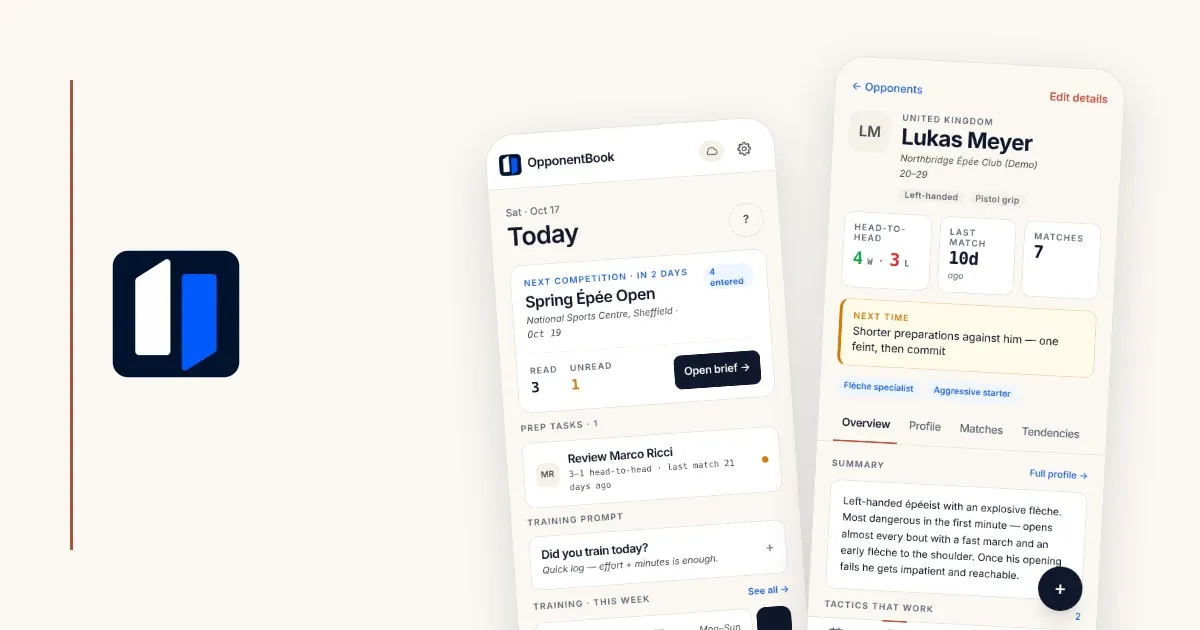
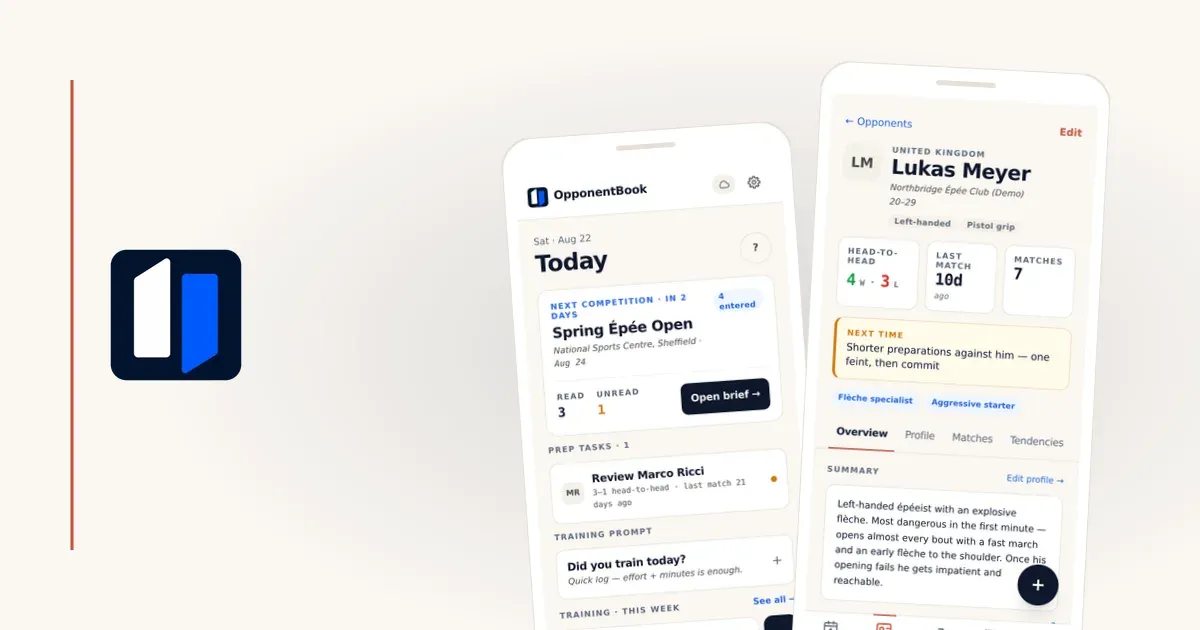
The Android app gives the journal a place on your home screen and opens to Today, with the next event and preparation tasks. It does not make every online feature work offline.
Your journal syncs through your own storage provider, and OpponentBook’s account database holds no copy of it. When you request AI processing, the content it needs passes through an OpponentBook server to the AI provider. Optional end-to-end encryption encrypts journal records before upload; photos, video and provider-visible file metadata are outside it. Your encryption password or recovery code is separate from your account password. The privacy guide explains the details.
Free and paid features
Free includes opponents, matches, training, events, pins, sync, backups and PDF/Word exports. The app does not cap attachment counts; available device and storage space still apply.
Premium adds analytics, heatmaps, training plans, dictation, short opponent summaries and AI suggestions for tags and fields. Pro and Max offer deeper analysis, with higher monthly limits in Max. Through Google Play, the app sells monthly subscriptions, as the iOS app does through the App Store; annual billing is available on OpponentBook’s web checkout.
Your plan belongs to your account and works across the app and web. Prices vary by currency and purchase channel and are shown before purchase. See the plan comparison.
Your first entry
After installing and signing in, choose your sport and add a recent opponent. A name and one observation are enough to begin. Add the club and other details when you know them. Then record a match and what you want to check next time. The opponent-journal guide offers a simple format; the memory article explains why notes still need context and uncertainty.
On iPhone and iPad, install OpponentBook from the App Store instead. If something does not work on Android, email support@opponentbook.com with your phone model and Android version.