Training routines come to OpponentBook, plus your statistics as a PDF
In this article
OpponentBook can now save a training session you repeat as a routine, so the next time you log it, a tap fills in the form and you change only what was different. Insights changes too. Every statistic on it can now count from a date you choose, two new sections set your physical tests beside your training and your results, and an Export action puts your statistics in a PDF for your trainer. All of this is in the web app now; the Android and iPhone apps get it with their next update.
Routines for the sessions you repeat
If your week has a fixed shape, such as footwork and technique on Mondays and a strength session on Thursdays, those sessions look almost the same in your journal from week to week. Save one of them as a routine and you can log it again in a few taps. A routine keeps the training blocks (type and duration), the effort, the tags and, if you like, the weekdays you usually train it. It never keeps notes — what you write about a particular evening stays with that evening.
Saving one. The Save as routine button sits under the log form and the edit form, and at the bottom of a logged session’s page. It is not offered for a week or month total. Tapping it opens a sheet that suggests a name from the weekday and the training, such as “Monday footwork”, and marks that weekday as a usual day. Usual days are optional; with none, the routine fits any day. If the sport already has a routine with that name, the sheet offers Update it instead of creating a second one.
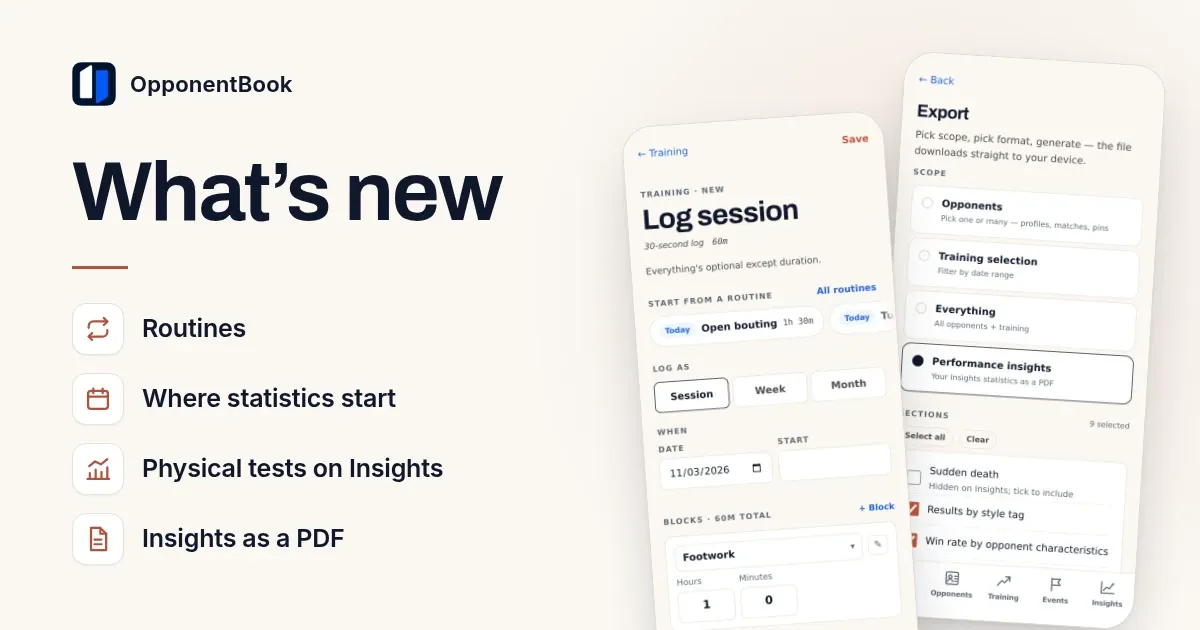
Starting from one. When you log a session, your routines appear as a row of chips at the top of the form. The ones you usually train on that weekday come first, marked Today, or with the weekday if you are logging another date. On a form you have not touched, a tap fills in the blocks, effort and tags at once, and Undo puts the form back if you picked the wrong one. If you have already changed the form, the app asks whether to replace your blocks or add the routine’s blocks after them. In the evening, the Today screen’s “Did you train today?” prompt shows a Log chip for up to two of the routines you usually train on that weekday.
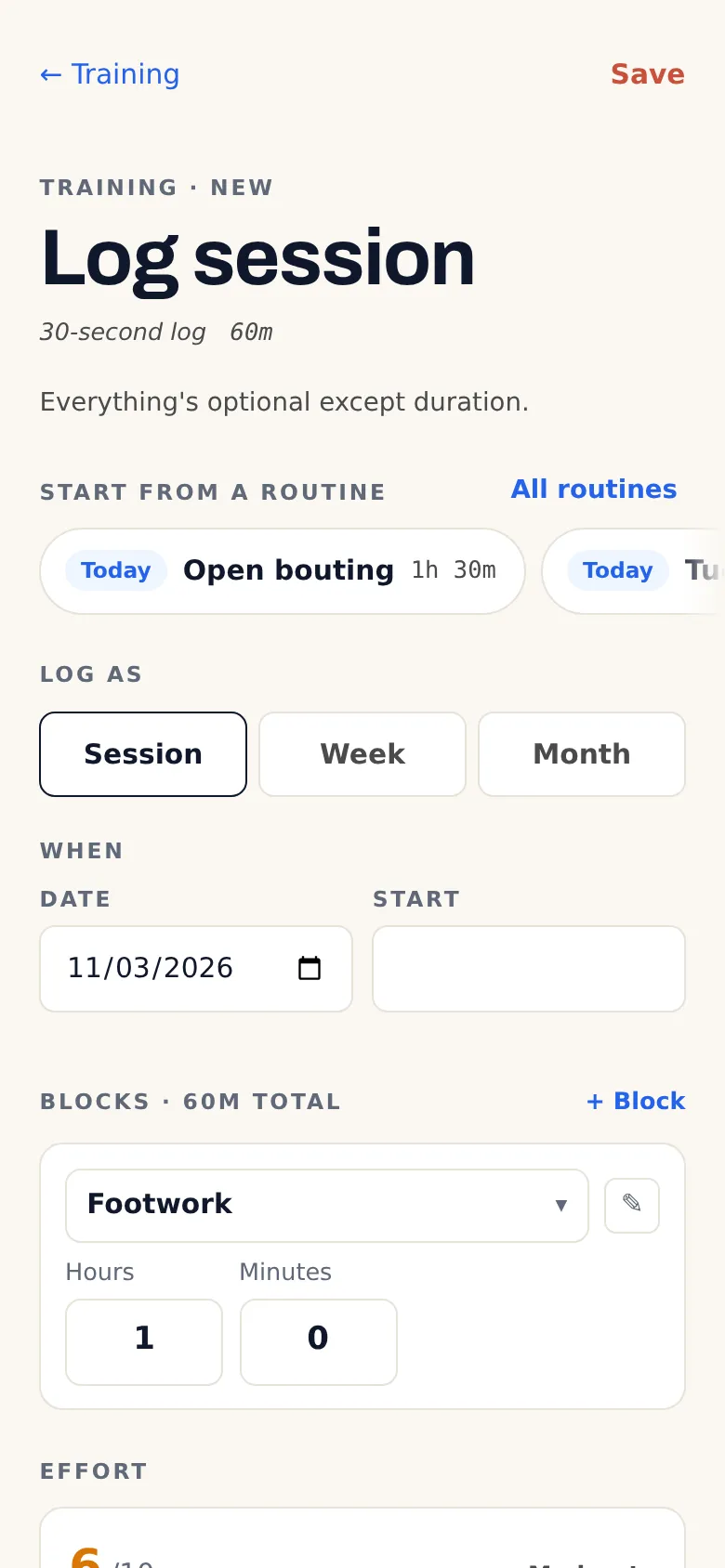
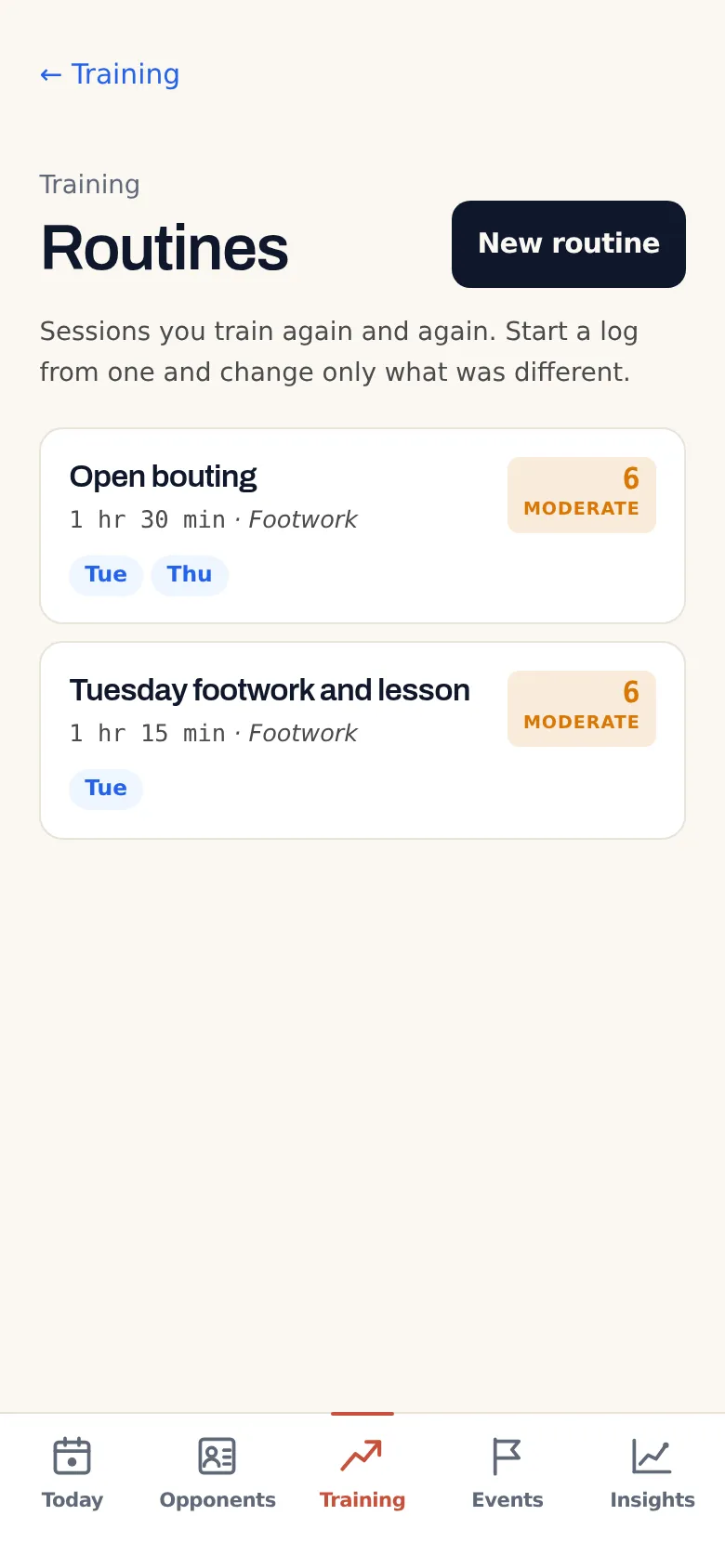
A routine is a snapshot, not a link. Logging from one copies it into an ordinary session, so editing or deleting the routine later never changes a session you have already logged, and a session started from a routine looks exactly like one you typed by hand.
To manage your routines, open Routines from the top of the journal. The list runs in week order, with the active sport’s routines first, and each routine opens an editor with the same blocks, effort and tags fields as a session. Deleting one asks you to confirm. You can keep up to 50 routines per account.
Routines are free on every plan. Like the rest of your journal, they are stored on your device and sync through your own storage, encrypted when end-to-end encryption is on, and they are included in your JSON backups. They are never sent to AI.
Effort for the whole session or for each block
The effort section of the training form now sits below the blocks. With two or more blocks, you choose Whole session or Each block, never both. With Each block, every block gets its own slider and the session shows the time-weighted average. The journal and your exports show each block’s effort.
Where your statistics start
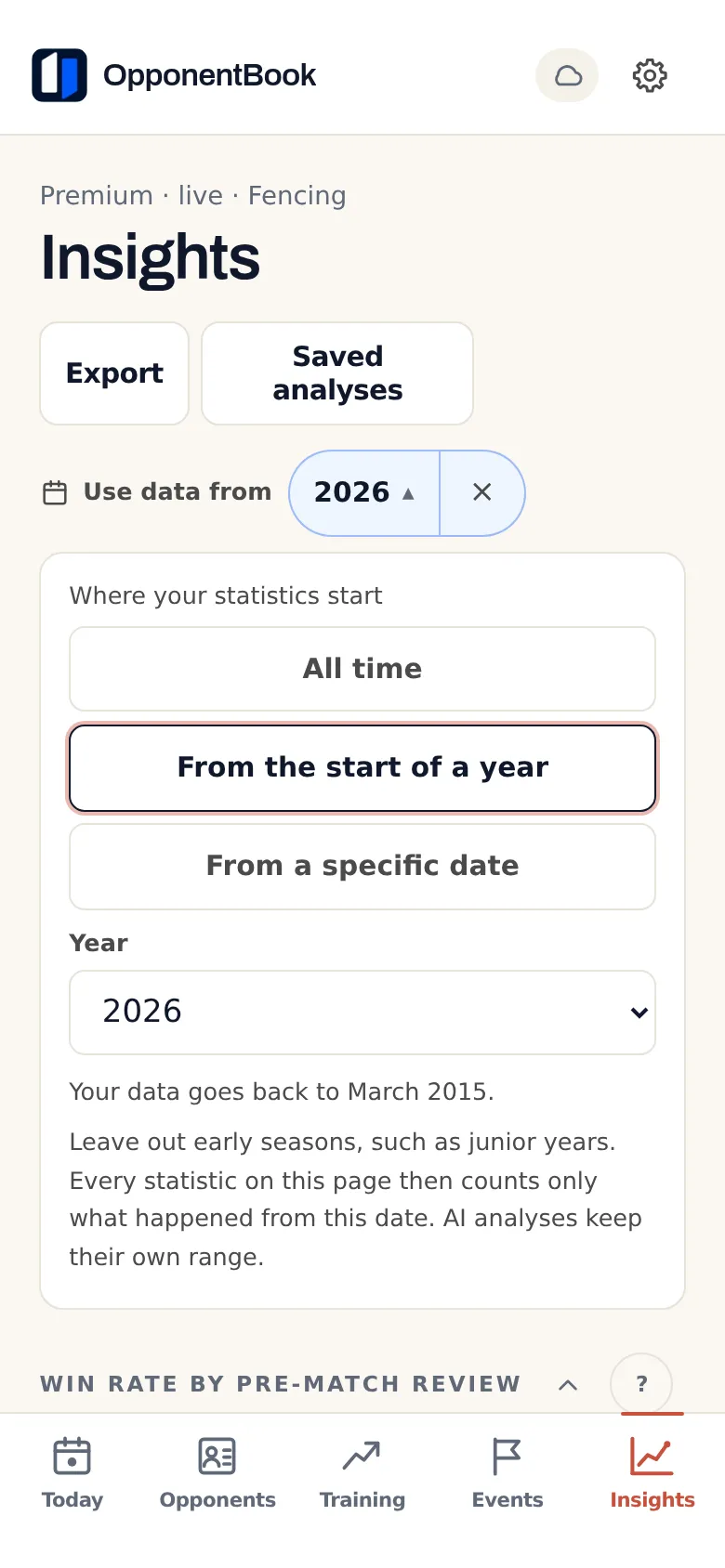
If you started logging as a junior, those early seasons still count in every win rate and chart. The new Use data from row at the top of Insights lets you choose where counting starts: all time, the start of a year, or a specific date. Every statistic on the page, the free sections included, then counts only the matches, pins and training from that date. Nothing is deleted; your earlier records stay in your journal.
When the start cuts something off, a chart’s heading adds “since” and the date, and a period the start cuts through gets a footnote. A section that is empty or needs more data says “Counting from …” with a Change link. The video-clips page applies the same start and tells you how many earlier clips it hides. Your choice is saved with your other Insights preferences and syncs to your other devices.
AI analyses keep their own date range and say so, although the training-load numbers the evolution analysis reads do follow your start. Setting a start needs Premium or a higher plan. If you move to Free later, Insights counts all your data again, with a notice that your saved start will apply once more with Premium.
Physical tests beside training and results
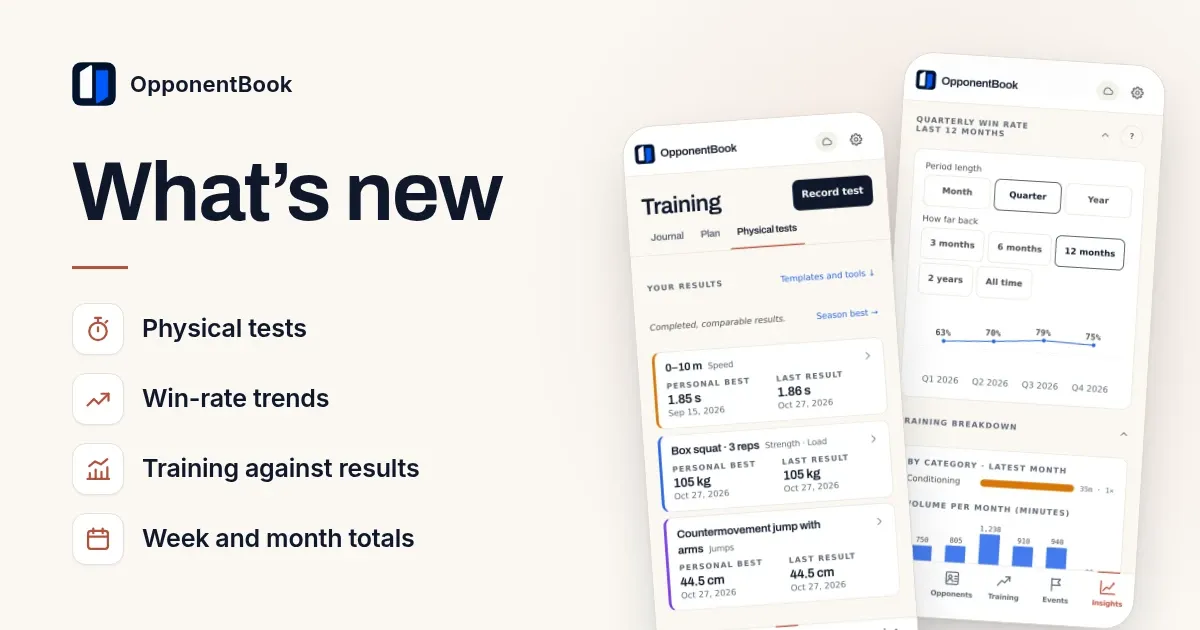
The previous update brought physical tests to the Training screen and the Training against results section to Insights. Two new sections now sit after that one, wherever the Physical tests tab is shown.
Physical tests and training. Pick one test, or a reference index’s overall score. For each pair of consecutive results, the section sets how much the result improved against the minutes per week you logged between the two tests, in the training categories you choose. A pair counts only when the tests are 14 to 182 days apart and your journal holds an entry in between.
Physical tests and results. Pick a test the same way. Each result is set against your win rate in the matches from the test day until the next test, or for 91 days at most. A window counts once it holds three or more decided matches.
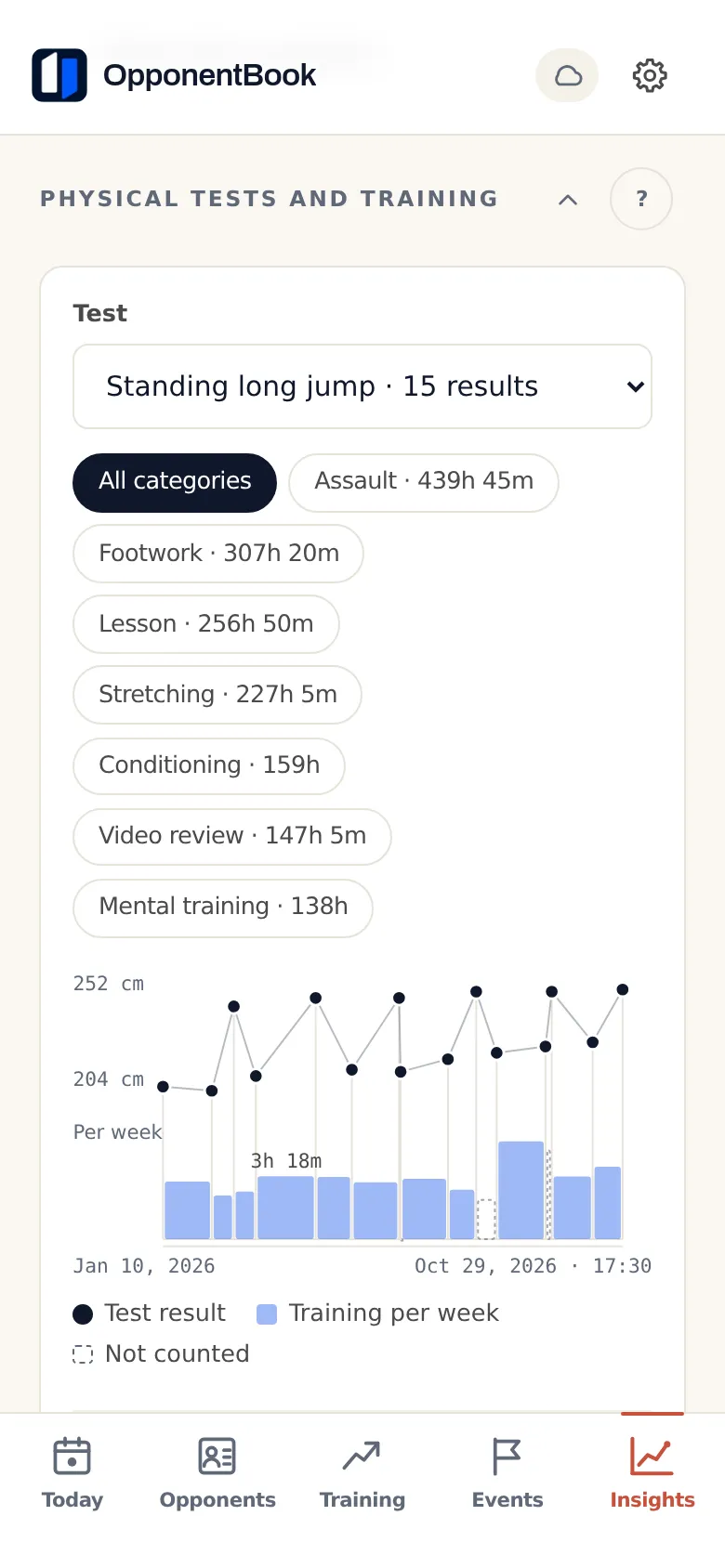
Both sections draw a timeline, with a better result always higher, and a scatter. Once six pairs count, they add a rank correlation, with a caution while there are fewer than ten. That correlation describes an association across your own tests, not a cause — growth, form on the day, an injury, the opposition and a move up an age category can all move both numbers.
The Show the numbers button opens a table you can sort by any column, with the pairs that did not count listed last and the reason beside each. A change is written out, such as “8 cm better”, and never shown by colour alone. Both sections are computed on your device and are never part of an AI request. Your chosen test and categories are saved to your account, and on Free the two sections appear as locked rows.
Your Insights as a PDF
Insights now has an Export action. It opens the Export screen on a new scope, Performance insights, with a checklist of the sections your sport has: the sudden-death or overtime record where your sport has one, results by style tag, win rate by opponent characteristics, the spatial heatmap, action success, the win-rate trend, the training breakdown, training against results, and the two physical-test sections wherever the Physical tests tab is shown.
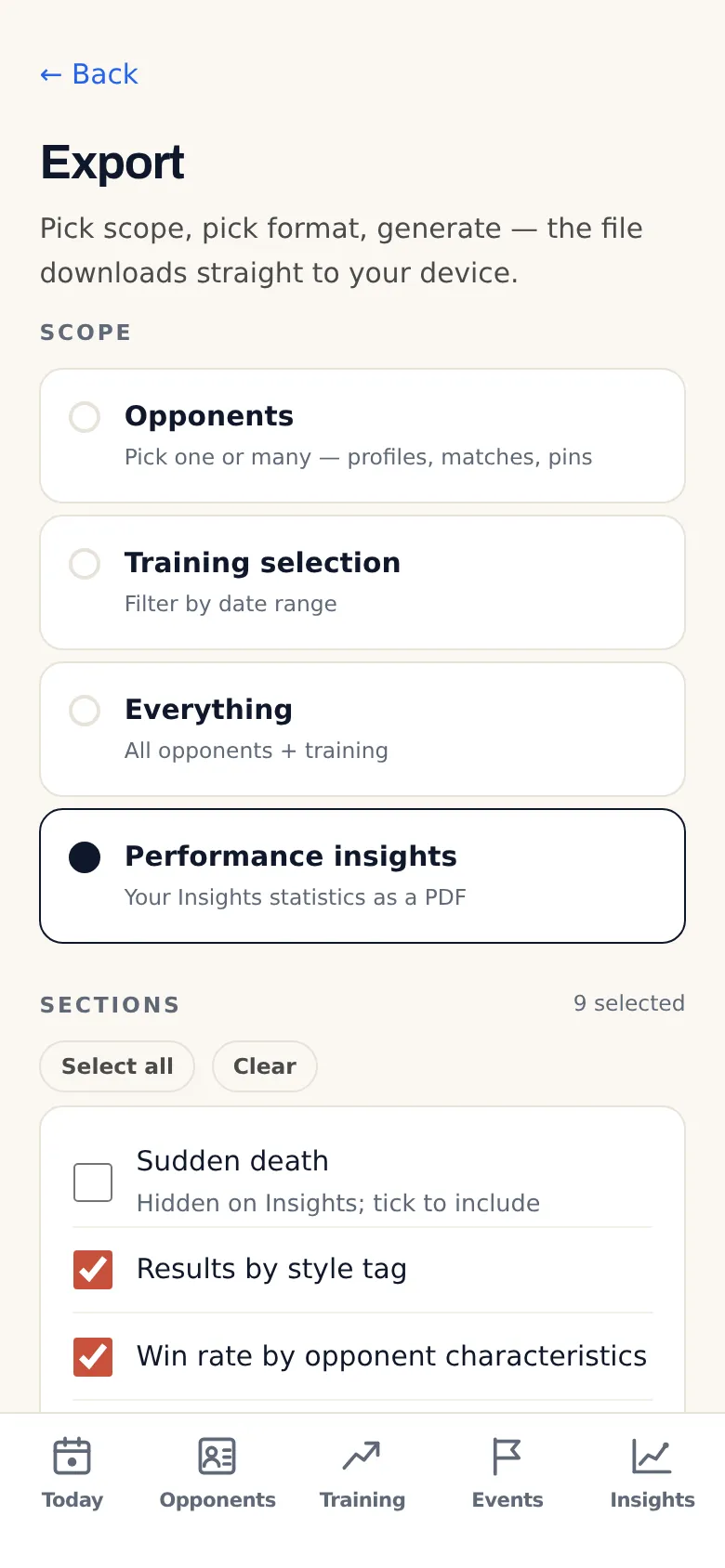
Every section starts ticked except the sudden-death or overtime record, which is ticked only if you have turned on Show statistics for it on Insights. A section with nothing to show is greyed out and marked “No data yet”. Your choices are remembered on the device.
The PDF prints the same numbers the screen shows, with the chart ranges and category filters you have saved, counted from your data start, which the cover names. Each section says how to read it, such as the minimum of three decided matches or “an association, not a cause”, and shows the sample behind every number. Nothing in it is written or interpreted by AI, no line says what caused what, and the Win rate by pre-match review section is left out. The export is PDF only, and Free sees the scope as a locked card. As with every export, Premium can remove the OpponentBook footer.
Two smaller changes
- Training against results: the Show the numbers table now sorts by any column (Period, Trained, Record, Win rate). The Planned column is gone, because planned minutes never enter the correlation; they stay in the chart as the dashed outline.
- Paying on the web without the trial: if your account can start the seven-day Premium trial, the web checkout now also offers Pay now without the free trial, for a promotion code that cannot be combined with the trial. The prices and terms shown follow your choice, and once you subscribe this way, the account cannot start a free trial on the web later. The iPhone and Android apps do not have this option.
To see which plan includes what, compare the plans on the pricing page.
Routines, test results and privacy
Routines and physical test results are part of your journal. Your journal syncs through the storage you chose, and OpponentBook’s account database holds no copy of it. When you request AI processing, the content it needs passes through an OpponentBook server to the AI provider and is not kept there afterwards. Optional end-to-end encryption encrypts journal records before upload; photos, video and provider-visible file metadata are outside it. Keep both the encryption password and the recovery code — if you lose both, neither OpponentBook nor your storage provider can restore the encrypted records. The privacy guide explains how these parts fit together.
Save your first routine
Pick a session you train every week. Open it in your journal, or log tonight’s, and choose Save as routine at the bottom. Next week, start the entry from its chip and change only what was different.