How to keep a training log in OpponentBook: one session, then a routine
In this article
To keep a training log in OpponentBook, log one session in your own terms, then save it as a routine for next time. Our second tutorial video shows how, from an empty training journal to a saved session and a saved routine. This post is the written version, in the same order. The example in the video is a fencing session. In any other sport, the form offers that sport’s training types.
The first tutorial covered adding an opponent and recording a match. This one is about the Training screen and the journal you keep there.
Start with your last session
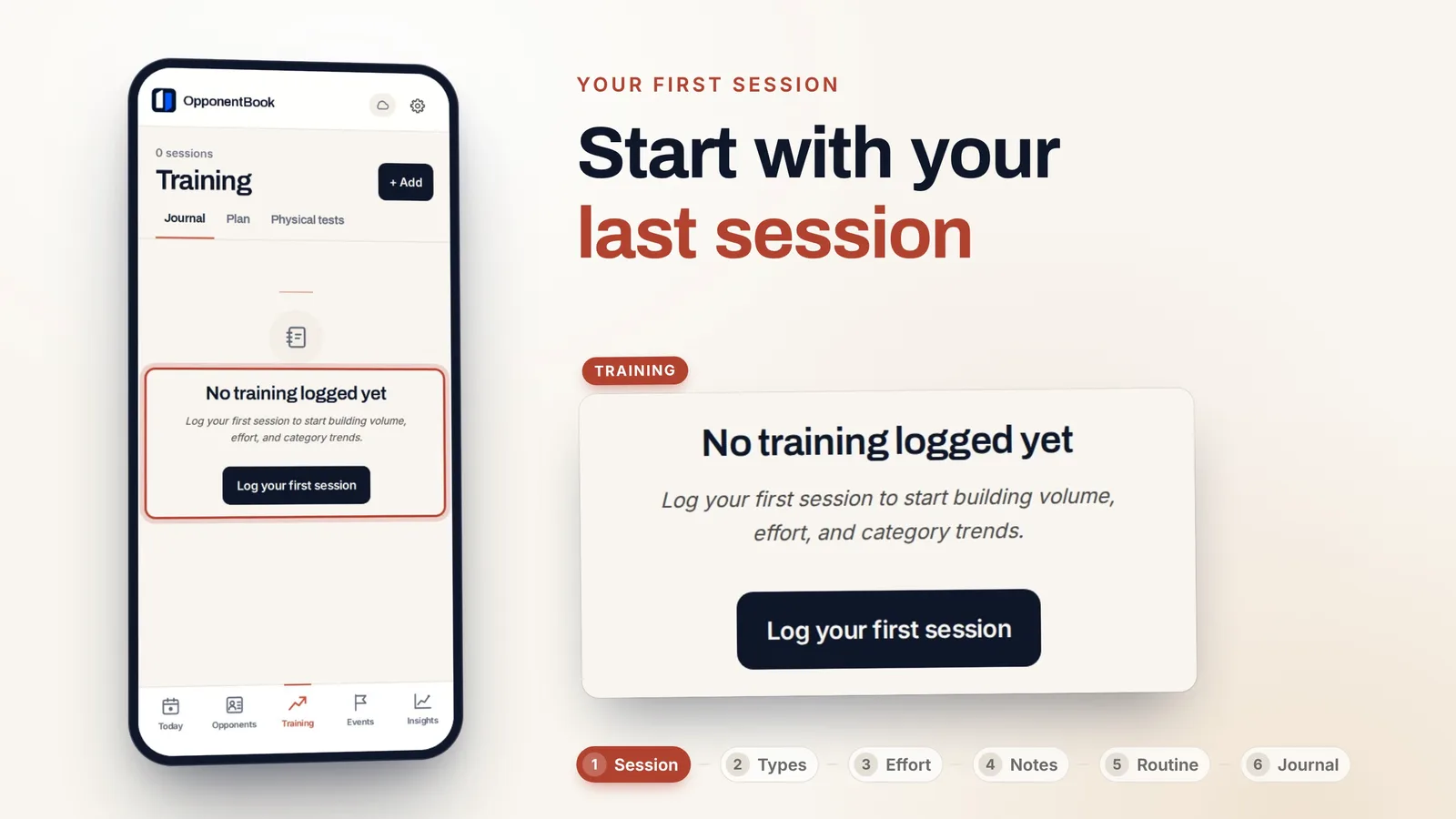
Open Training. Your journal is empty, so the screen says “No training logged yet” and shows a button labelled Log your first session. Tap the button and log the session you trained most recently.
Only the duration is required. The date and start time, the effort, the tags and the notes are optional, but worth filling in — they are what you will look back on.
Split the session into blocks
A session rarely consists of one thing. Split it into blocks, one for each type of training, and set how long each one lasted, in hours and minutes. The form starts with one block; tap + Block to add another.
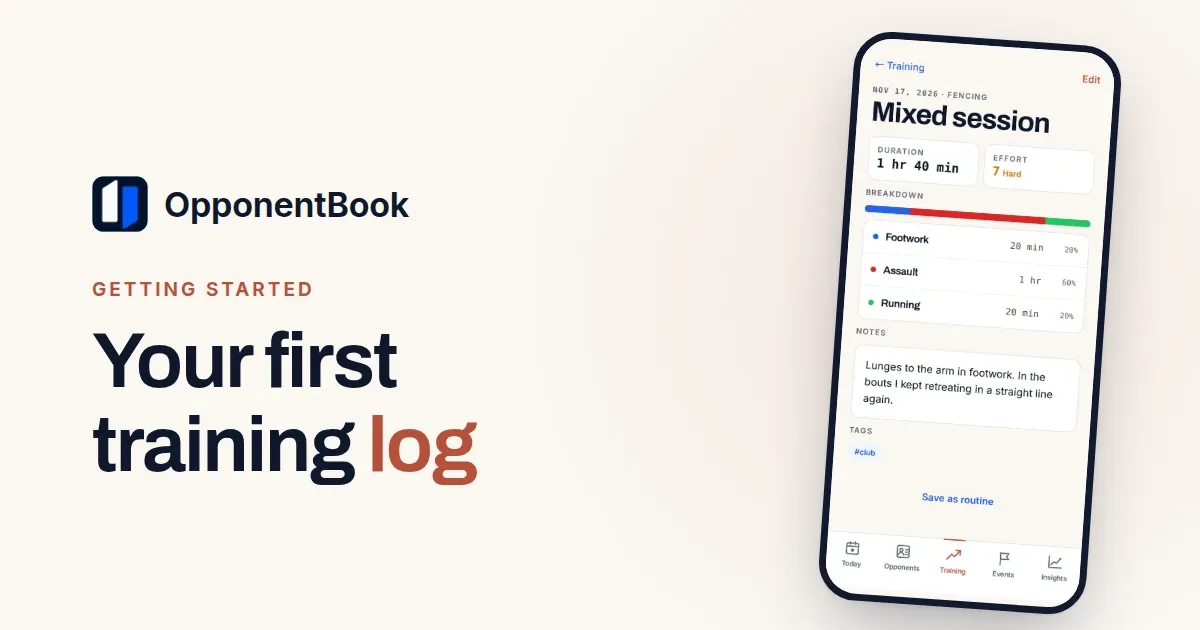
In the video, the session has three blocks: 20 minutes of footwork, an hour of bouting (Assault in the app’s fencing list) and a 20-minute run. The app adds the blocks up, so the session’s duration is 1 hour 40 minutes.
Use your own training types
Each block has a training type, chosen from a list that is prepared in advance for your sport. That list is a starting point. Coaches and athletes have their own names for what they do in training, and a log is more useful when it is written in those names.
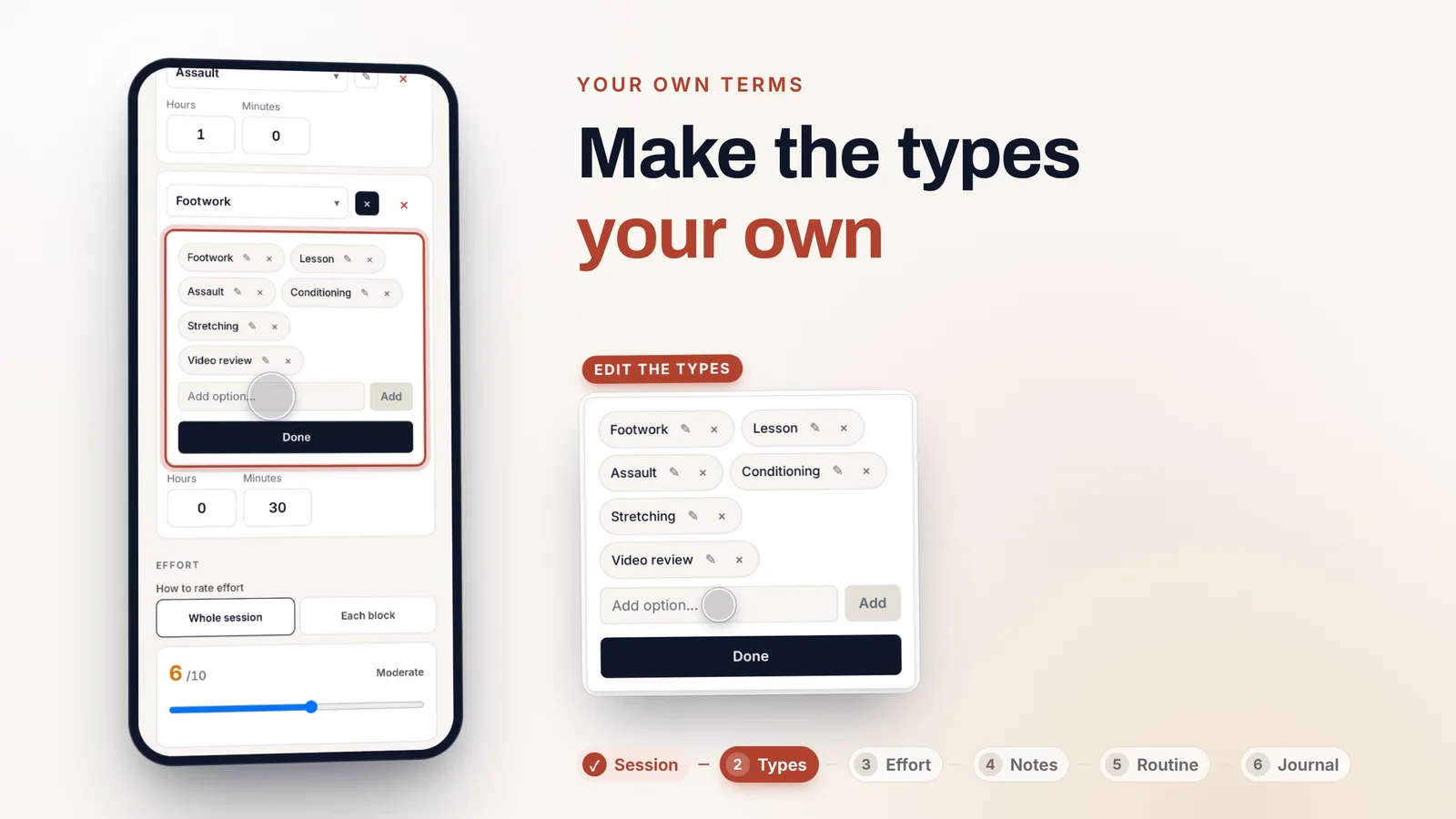
Tap the pencil beside the training-type menu to open the list for editing. Remove the types you do not train, add the ones you and your coach use, and tap Done.
In the video, “Mental training” is removed from the list, and “Running” is typed in and chosen for the third block.
Rate the effort, then add tags and notes
Rate how hard the session felt, from 1 to 10. In the video it is a 7, which the app labels Hard. When the session has two or more blocks, the form asks How to rate effort, with two choices: Whole session and Each block. Choose Each block if you want to rate each block instead.
Then add tags, and use Notes for what you worked on and what you want to remember. In the video the session gets one tag, “club”, and this note:
Lunges to the arm in footwork. In the bouts I kept retreating in a straight line again.
Save the session as a routine
If you train this session every week, tap Save as routine under the form. Name the routine and, under Usual days, choose the days you usually train it, then tap Save routine. The days are optional — a routine with no usual days fits any day.
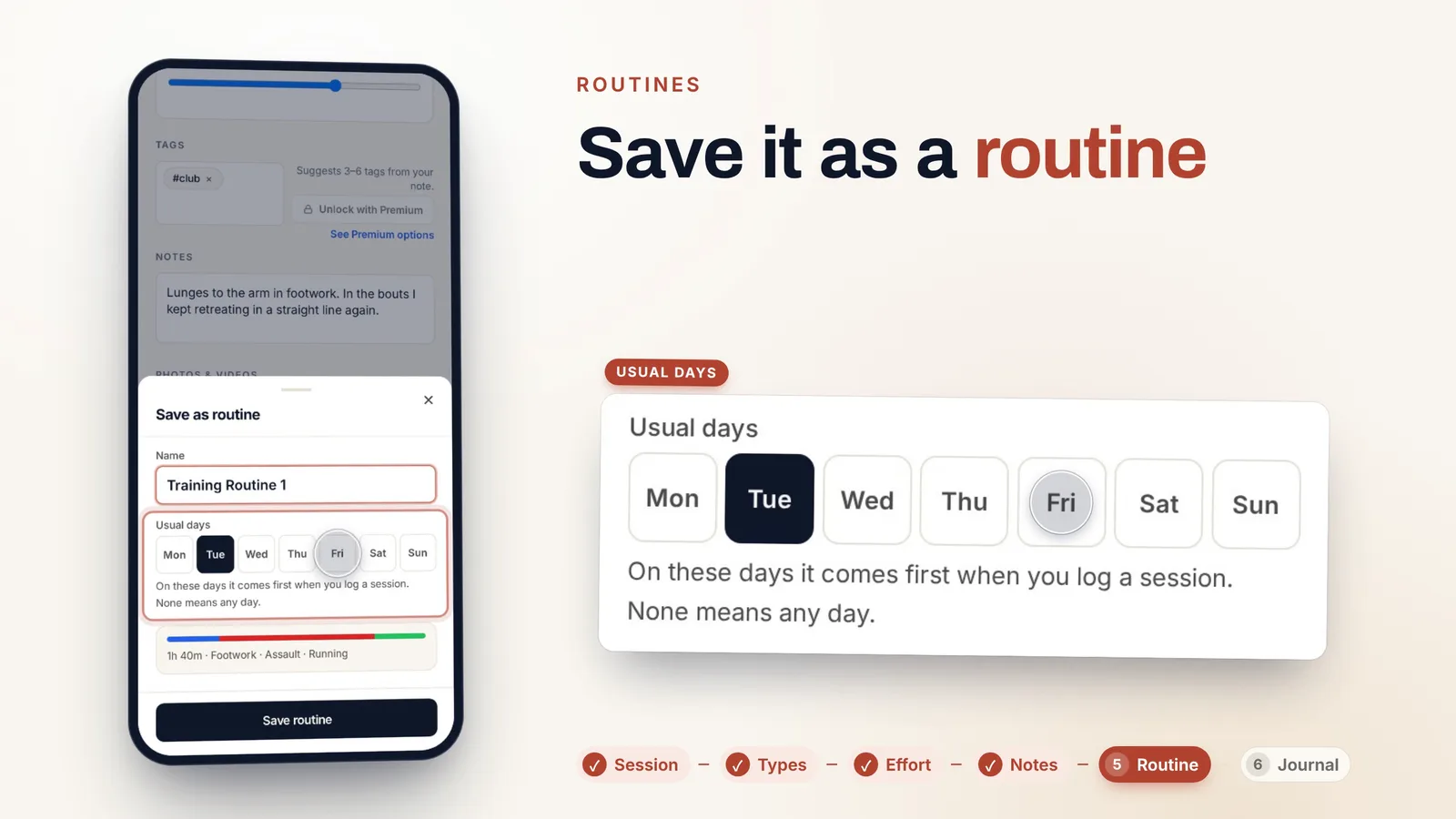
A routine keeps the blocks, the effort and the tags. It does not keep the notes, which belong to the session you wrote them about. The routines article describes the Routines list and how to update a routine.
Find the session in your journal
Back on the form, tap Save session. The app opens the session’s page, with its duration and effort, the breakdown by training type, your notes and your tags.
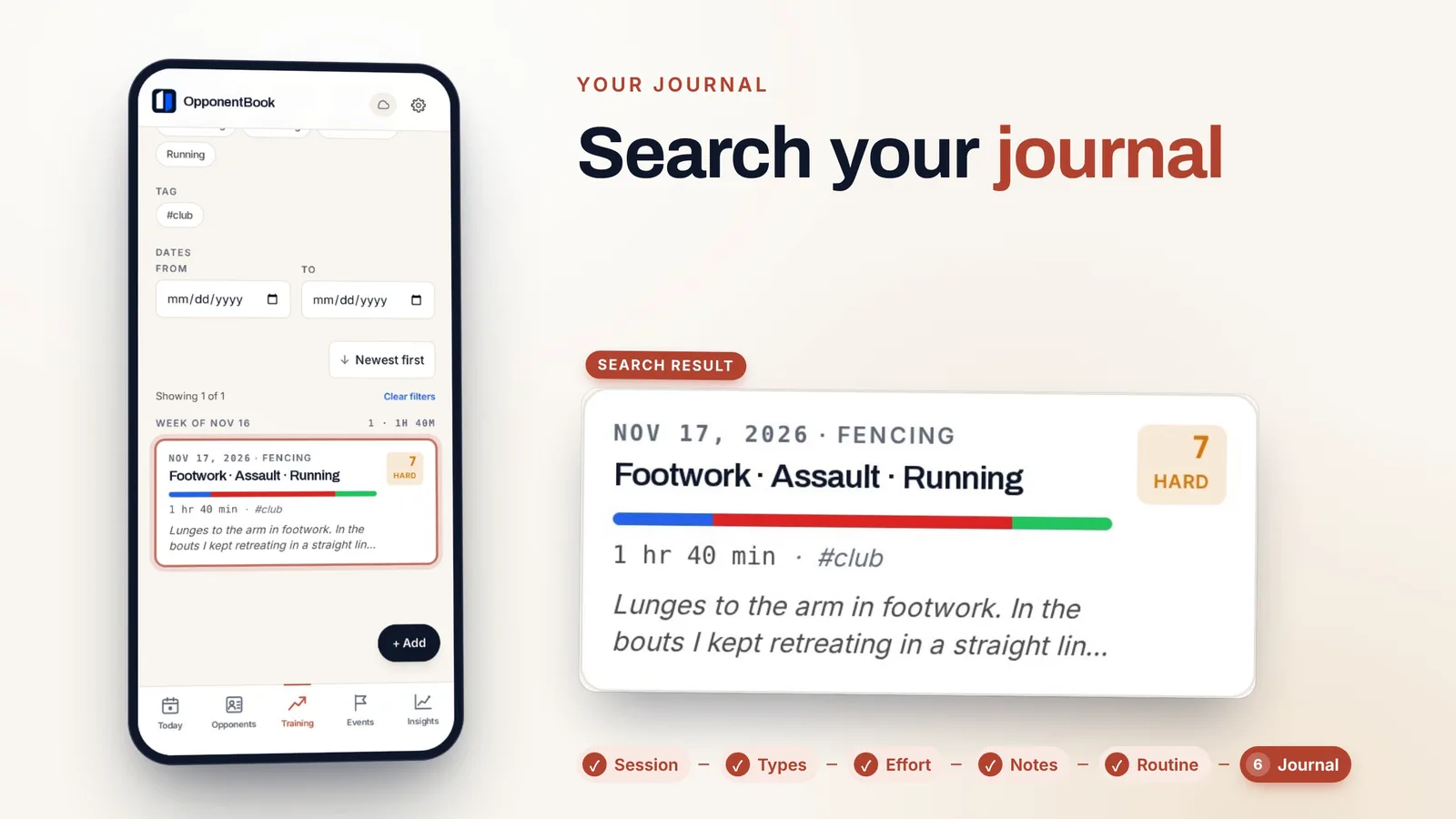
The session is now in your journal, on the Journal tab of Training. To find something later, search your notes, or filter the journal by training type (the filter is labelled Category) and by tag. In the video, a search for “straight line” finds the session through its note.
Next time, start from the routine
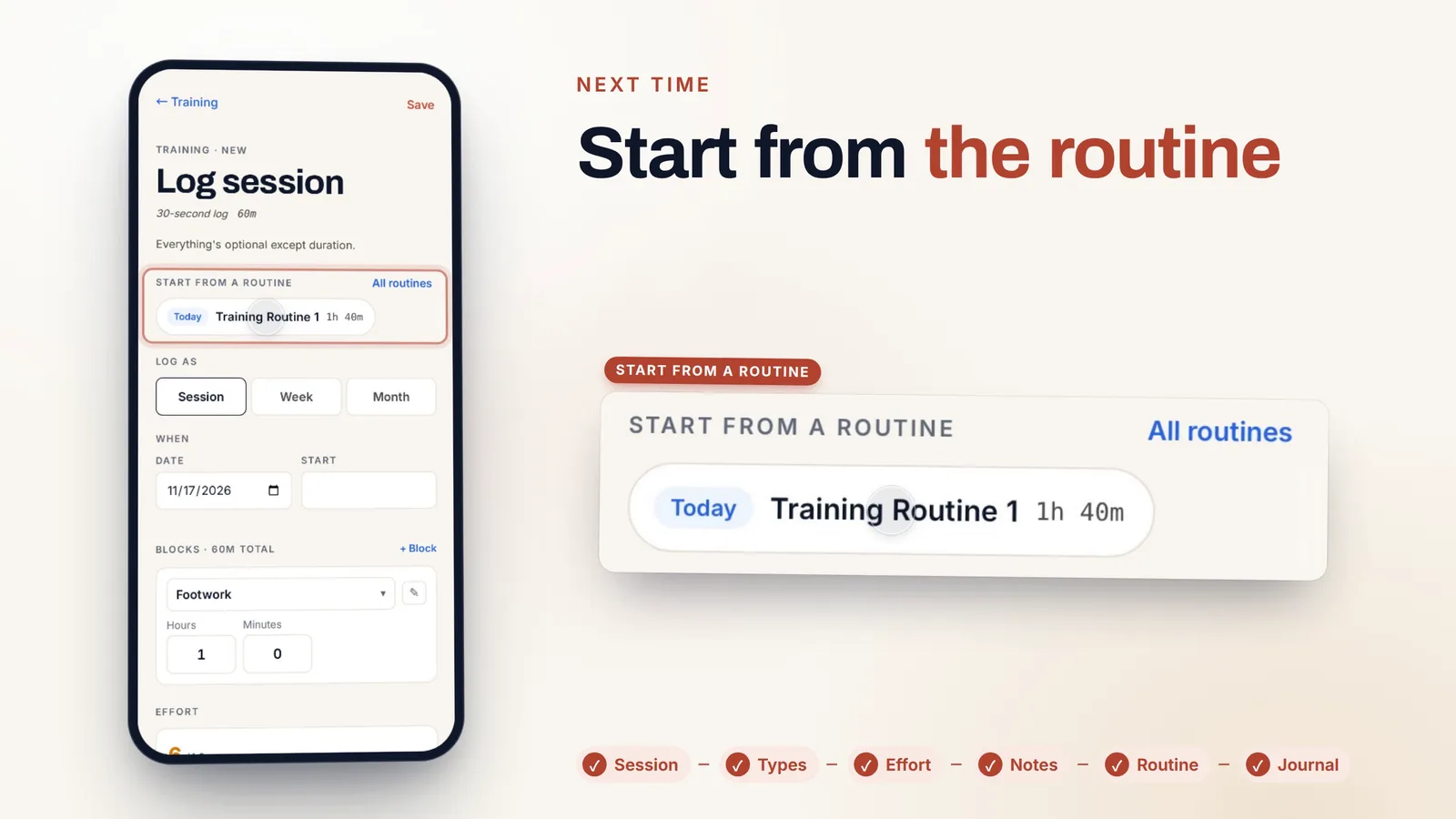
The next time you log a session on one of the routine’s usual days, the routine comes first. The form shows a row labelled Start from a routine, with the routine marked Today.
- Tap the routine. Its blocks, effort and tags are filled in.
- Change only what was different. In the video, the bouting block goes from an hour to 45 minutes.
- Tap Save.
Or log a whole week as one entry
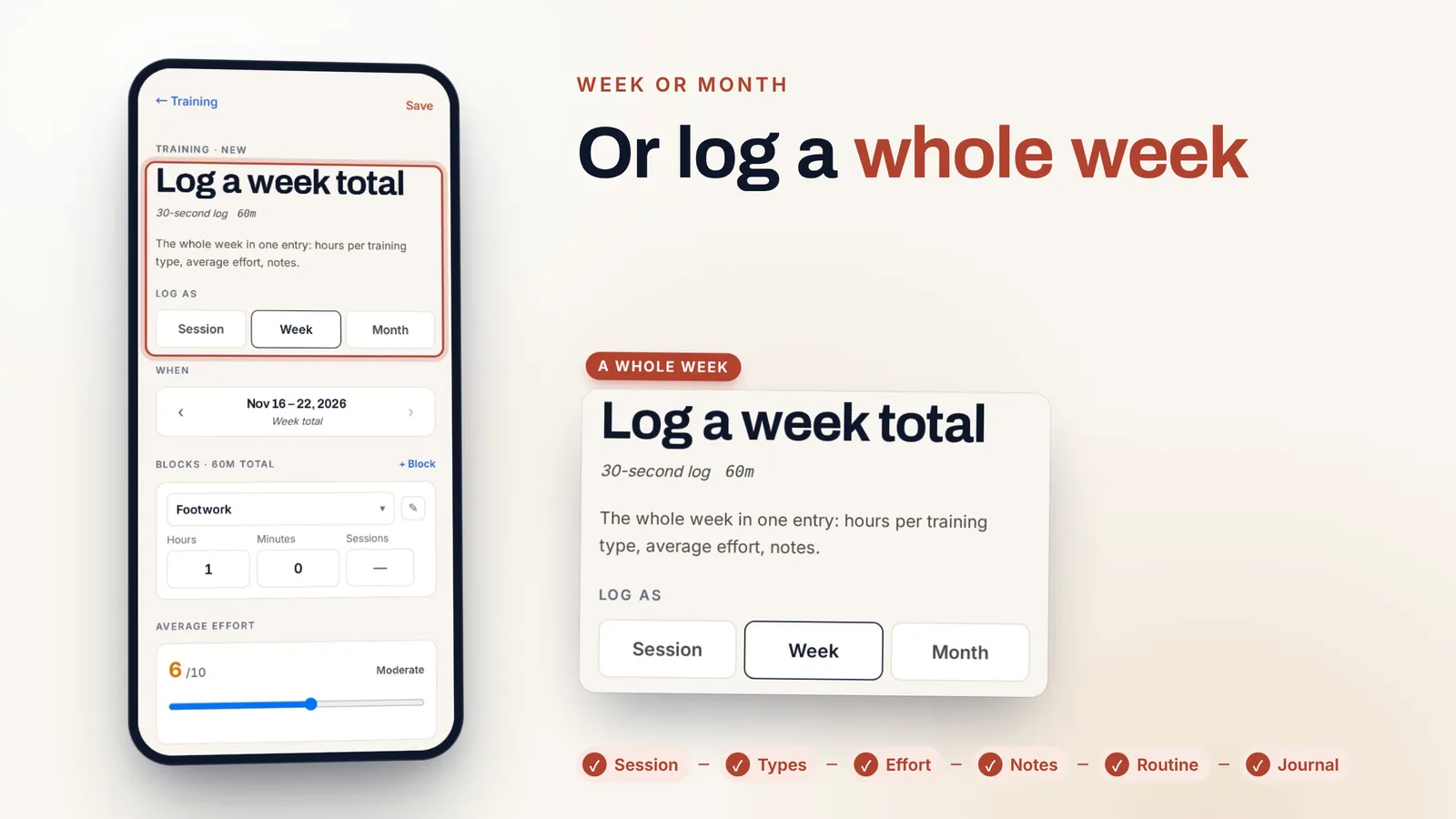
If you would rather not log every session, choose Week under the Log as label. The form’s title changes to Log a week total, and the whole week becomes one entry: the hours for each training type, the average effort and your notes. Month works the same way.
Your journal on more than one device
Your journal is stored on the device you wrote it on. To use it on your other devices, connect your own Google Drive, Dropbox or iCloud in Settings; the Android app connects to Google Drive or Dropbox.
Your notes are on your device, or in your own cloud storage once you connect it. They are not stored on OpponentBook’s servers. Notes are free forever. The privacy guide explains how storage, AI requests and encryption fit together.
Do the same for your other regular sessions
That is how to keep your training log. Now save the other sessions you repeat as routines, so that each one comes first on the days you usually train it.
If you are new to OpponentBook, create a free account, choose your sport and log your most recent session.