How to start with OpponentBook: your first opponent and your first match
In this article
You start your book in OpponentBook with one opponent and one match, written in your own terms. This post is the written version of our first tutorial video. It goes from an empty book to a saved match in the same order as the video, and the example is a fencing bout. In another sport, the forms show that sport’s details, scoring and diagram instead.
Add one opponent you met recently
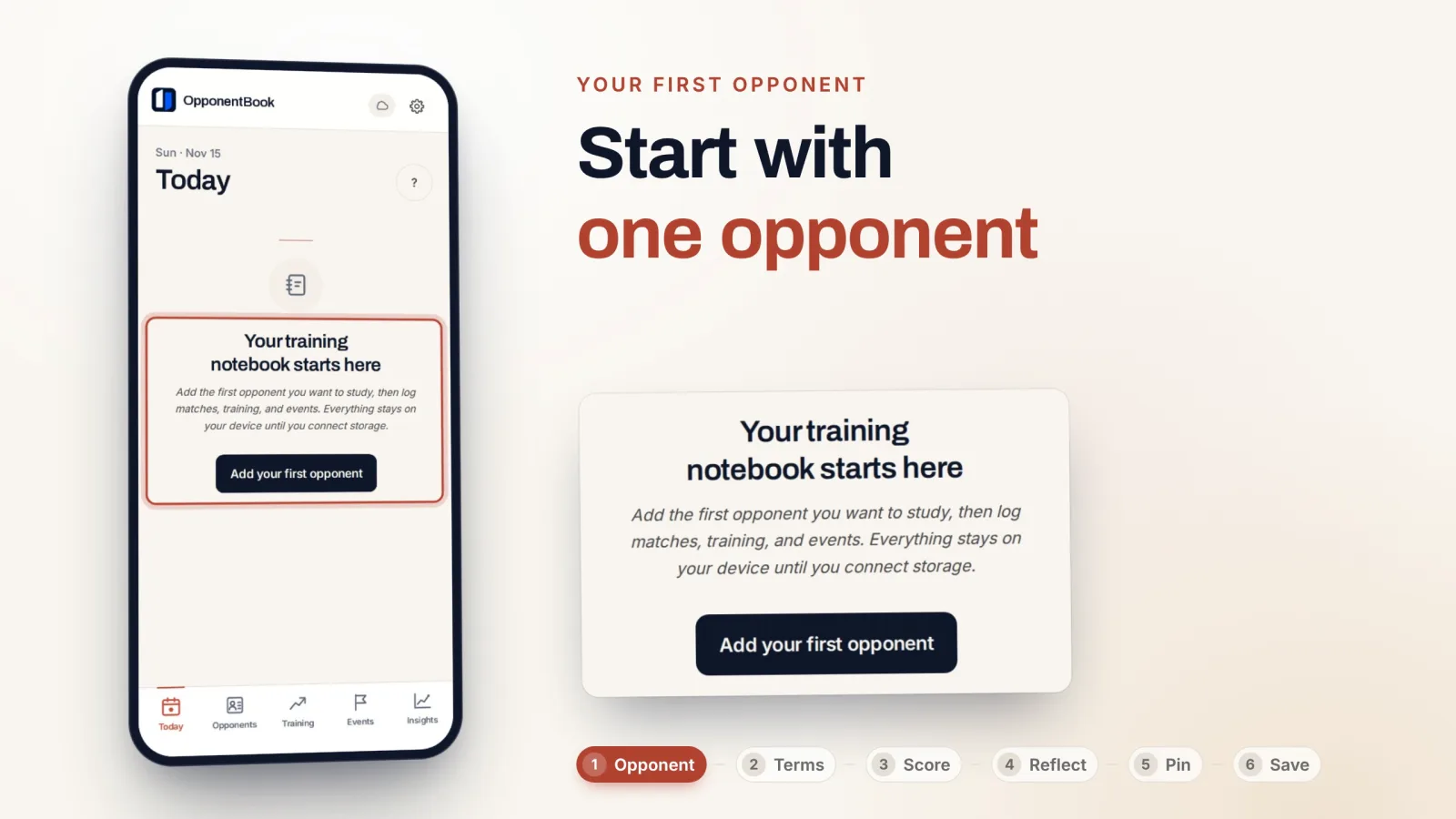
The first time you open the app, your book is empty, and the Today screen shows an Add your first opponent button. Start with one opponent you met recently.
Only the name is required. Add their club and the hand they fence with if you know them, or leave both for later. Further down the form are the grip and the style tags that describe this opponent. Anything you leave out can be added afterwards from Edit details on the opponent’s page.
Make the tag lists your own
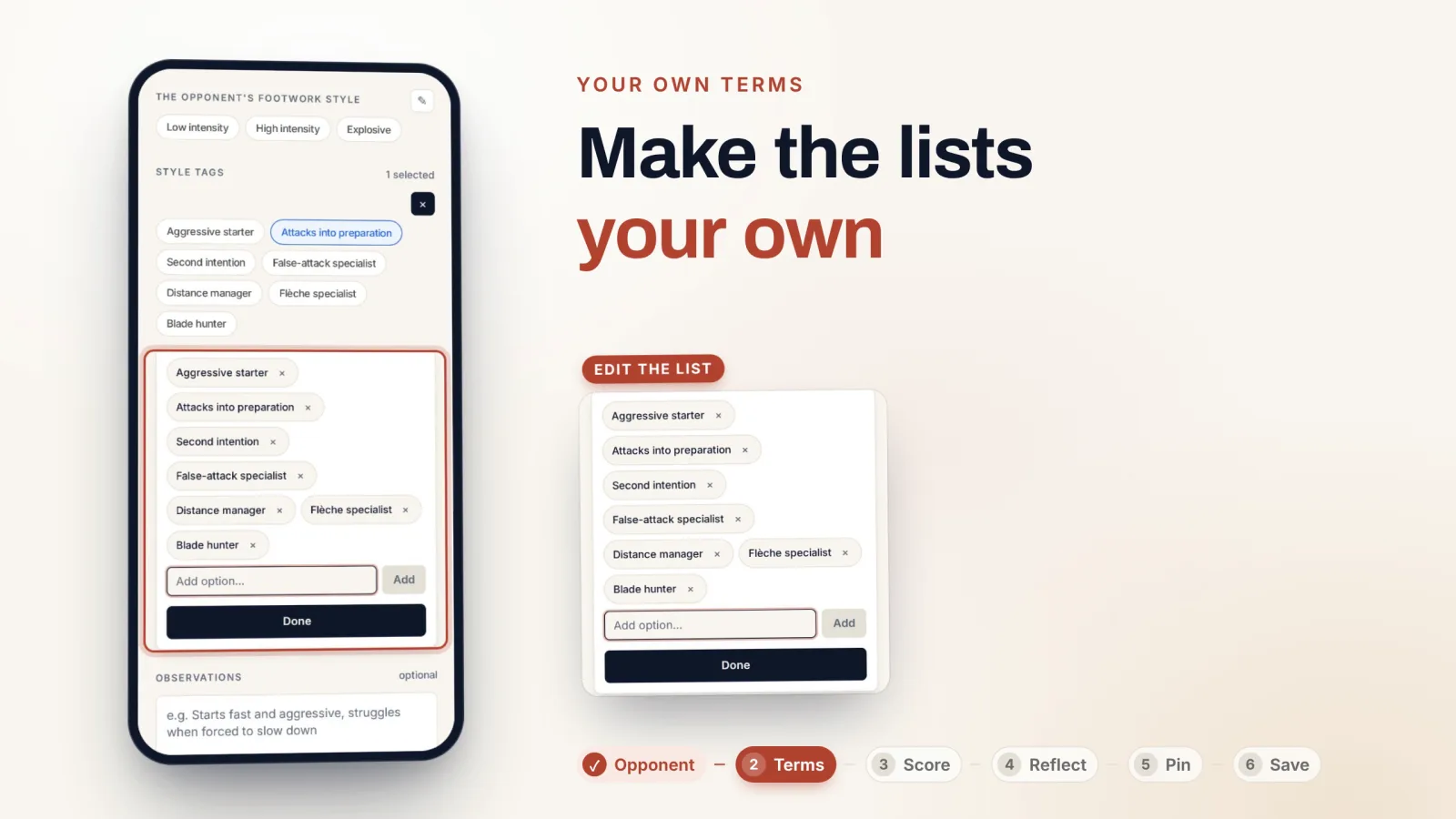
The lists start with common terms. They are a starting point, and you do not have to adopt them. Every coach and every athlete has their own words for what they see, and notes are more useful when they are written in those words.
So every list of tags can be edited:
- Tap the pencil beside the list.
- Remove the terms you don’t use.
- Add the words you and your coach use, then tap Done.
In the video, the built-in tag “Flèche specialist” is removed from the style tags, and a new one, “Counter specialist”, is typed in and selected. The change is made to your sport’s list, so it is there for the next opponent you add as well.
Then save the opponent. The app opens the opponent’s page, where everything you learn about this opponent is collected.
After a match, enter the score
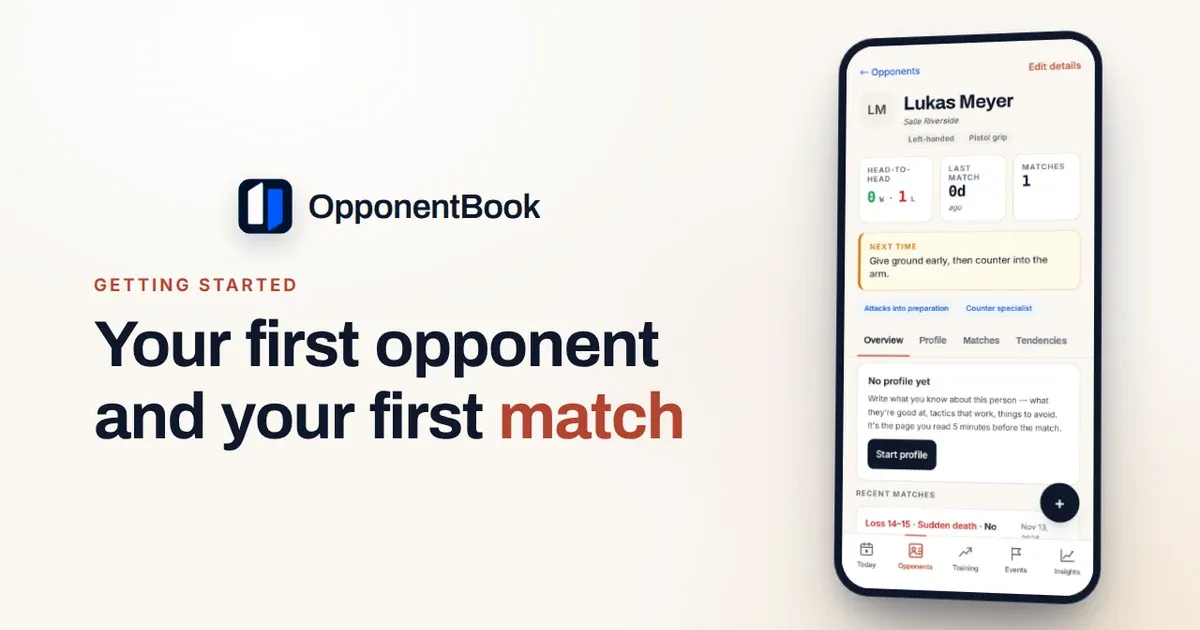
After a match against this opponent, tap the plus button on the opponent’s page and enter the score. In the video it is a 14–15 loss.
That bout went to sudden death, so the sudden-death box is ticked. The app never ticks it for you. A one-touch margin such as 14–15 does not show on its own whether a bout went to sudden death, so tick the box yourself when it did. If a priority minute was fenced, choose who had priority. If no priority minute was fenced, leave that choice empty.
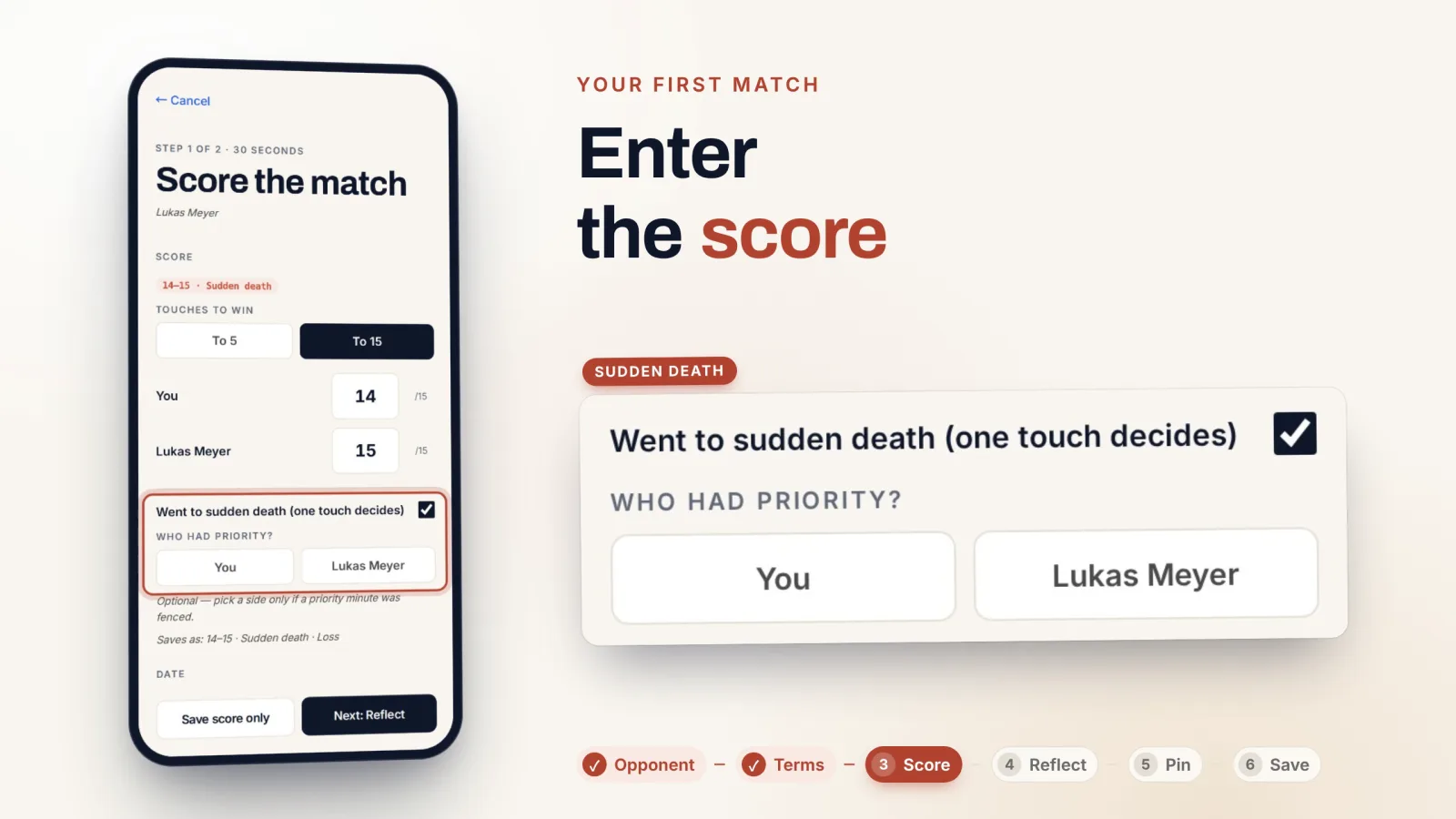
There are two ways to continue from here. If you are short of time, choose Save score only and write the rest later. Otherwise choose Next: Reflect.
Answer three questions while the match is fresh
The Reflect step asks three questions. You can answer any, all or none of them:
- What worked. Counter-attacks into his preparation.
- What didn’t. Retreated in a straight line at 9–9.
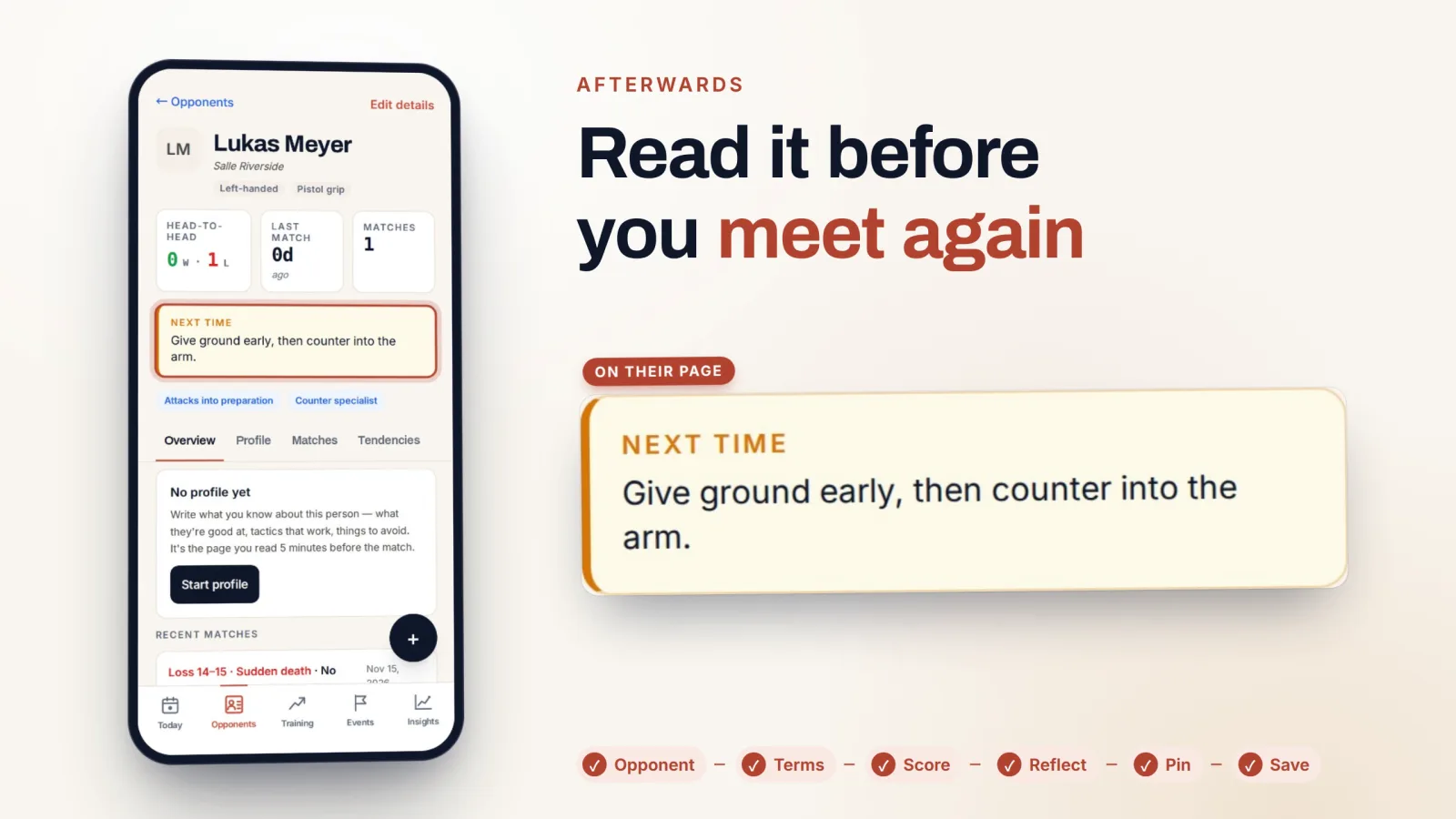
- Next time. Give ground early, then counter into the arm.
The lines in italics are the ones written in the video. Write yours while the match is fresh.
The opponent-journal article goes through what these three questions are for. The memory article covers why a note is worth having and why it should show what you are unsure of.
Pin where something happened
To record where something happened, open Match annotations on the Reflect step.
- Choose how it went: Worked, Didn’t work, Dangerous or Tendency.
- Tap the spot on the diagram. In fencing, the diagram is the piste.
- In the sheet that opens, tag your own action and your opponent’s, if you want to. In the video, that is your counter-attack and their flèche.
- Save the pin.
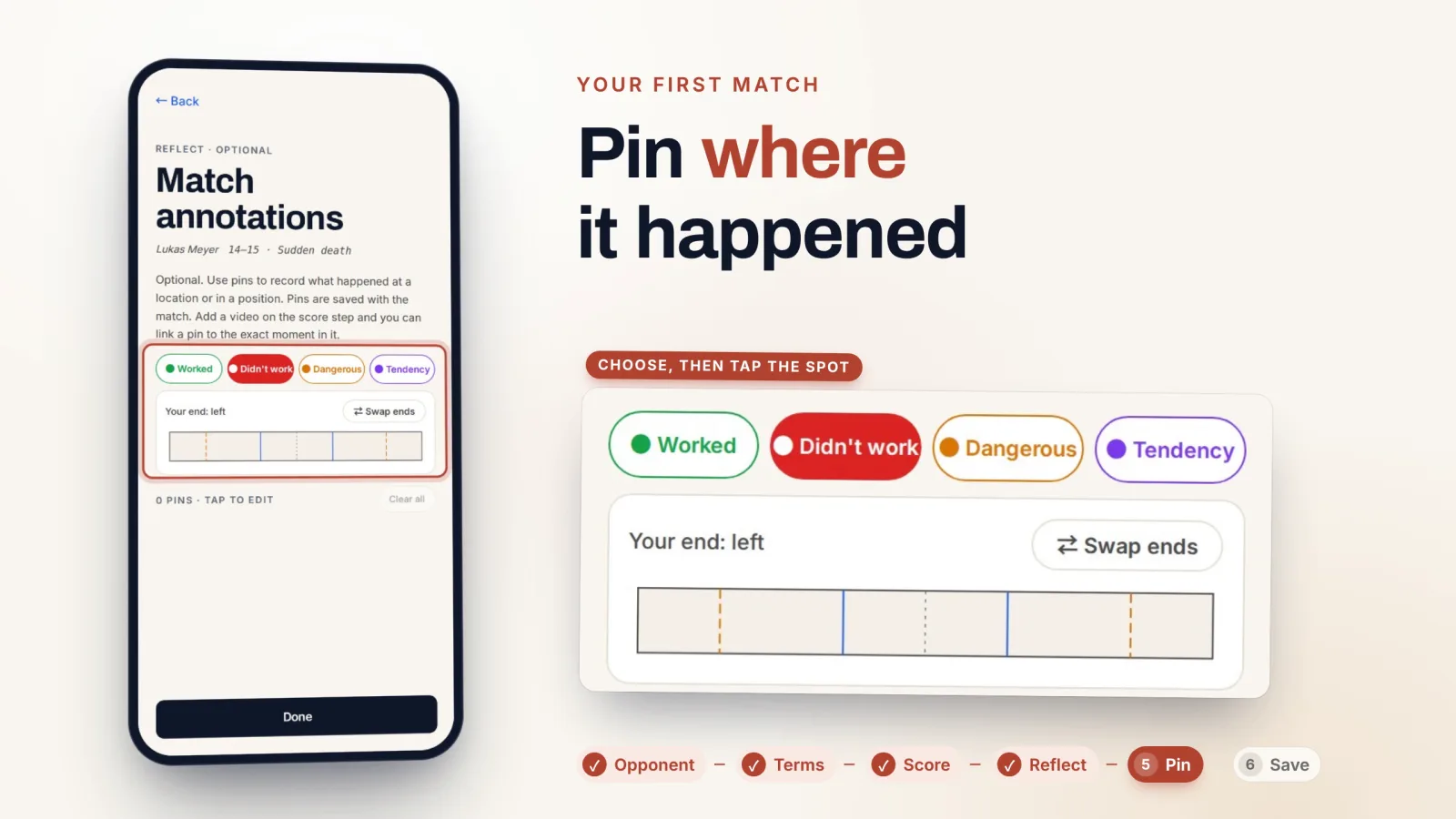
The two action lists have a pencil too, so you can change those tags to your own terms in the same way.
When the pin is saved, tap Done and then Save match.
Read your advice before you meet them again
Go back to the opponent’s page. What you wrote under Next time now sits at the top of the page, above the tabs, ready to read before you meet them again.
Using your book on other devices
Your book is stored on the device you wrote it on. To use it on your other devices, connect your own Google Drive, Dropbox or iCloud in Settings; the Android app connects to Google Drive or Dropbox. Until you connect one, the Today screen shows a Local-only mode notice with a Connect link.
Your notes are on your device, or in your own cloud storage once you connect it. They are not stored on OpponentBook’s servers. Notes are free forever. The privacy guide explains how storage, AI requests and encryption fit together.
Now add the opponents you already know
That is your first opponent and your first match. Now add the others you already know. Only the name is required for each of them, and the rest can wait until you next meet them.
If you do not have an account yet, create a free account, choose your sport, and add the opponent you met most recently.