Log doubles and team matches in OpponentBook
In this article
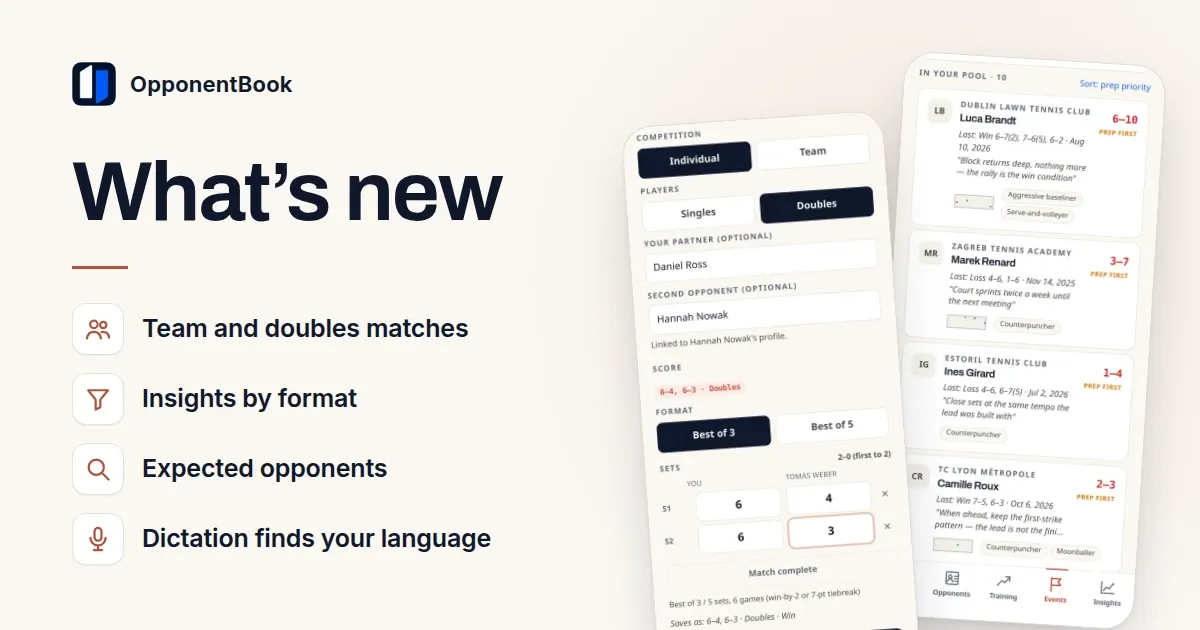
You can now log doubles and team matches in OpponentBook. Insights can show one format at a time, expected opponents are added by search right on the event page, and dictation works out which language you are speaking. All of this is in the current app on Android, iPhone and the web; if you do not see it yet, update the app.
Doubles and team matches
In tennis, badminton and table tennis, the match form now has a Players row with Singles and Doubles; padel is always doubles. A doubles match can also hold your partner and the second opponent. When the second opponent is already in your book, the match counts in your record against both of them.
In every sport except fencing and MMA, a Competition row lets you mark a match as Team. Fencing has its own choice, Team relay, where you enter the touches from your own bout rather than the team’s running score.
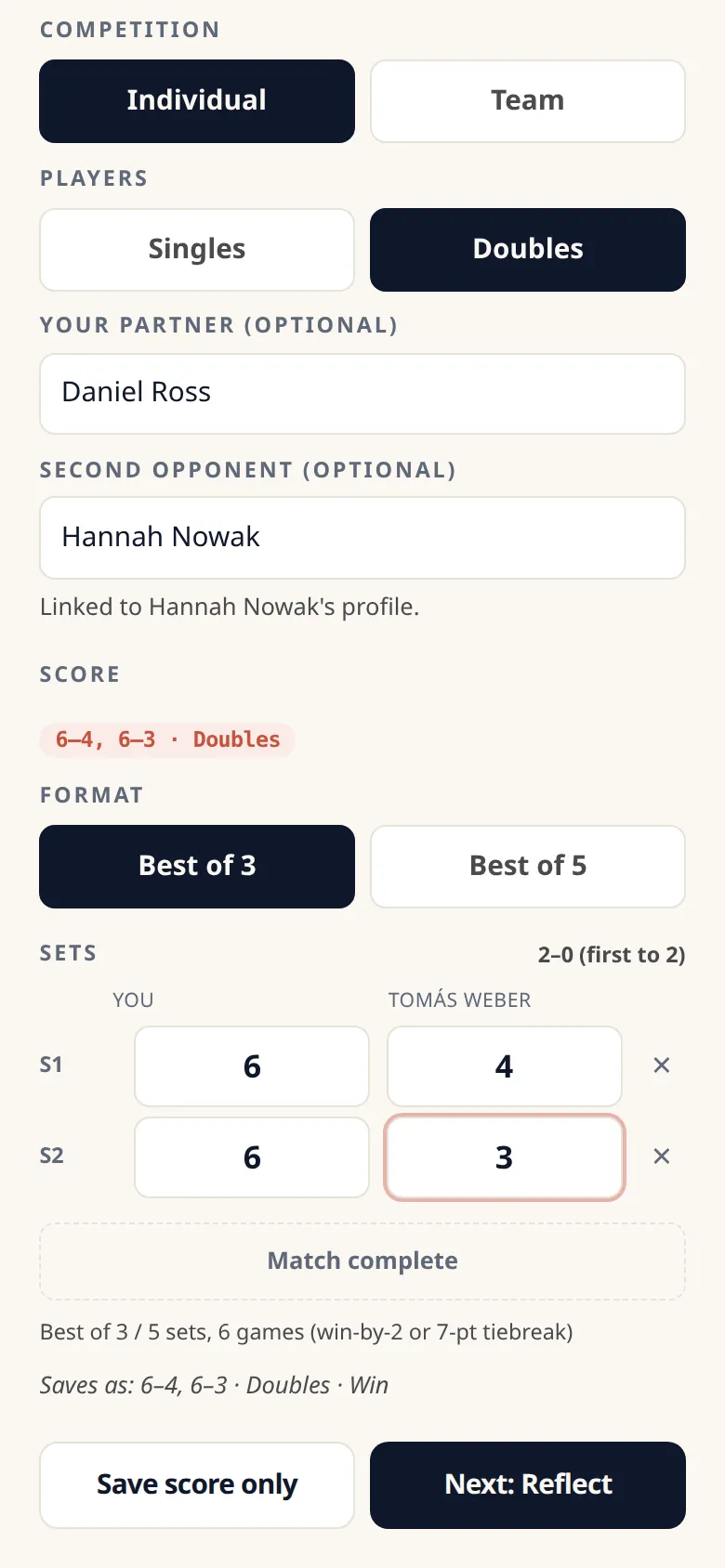
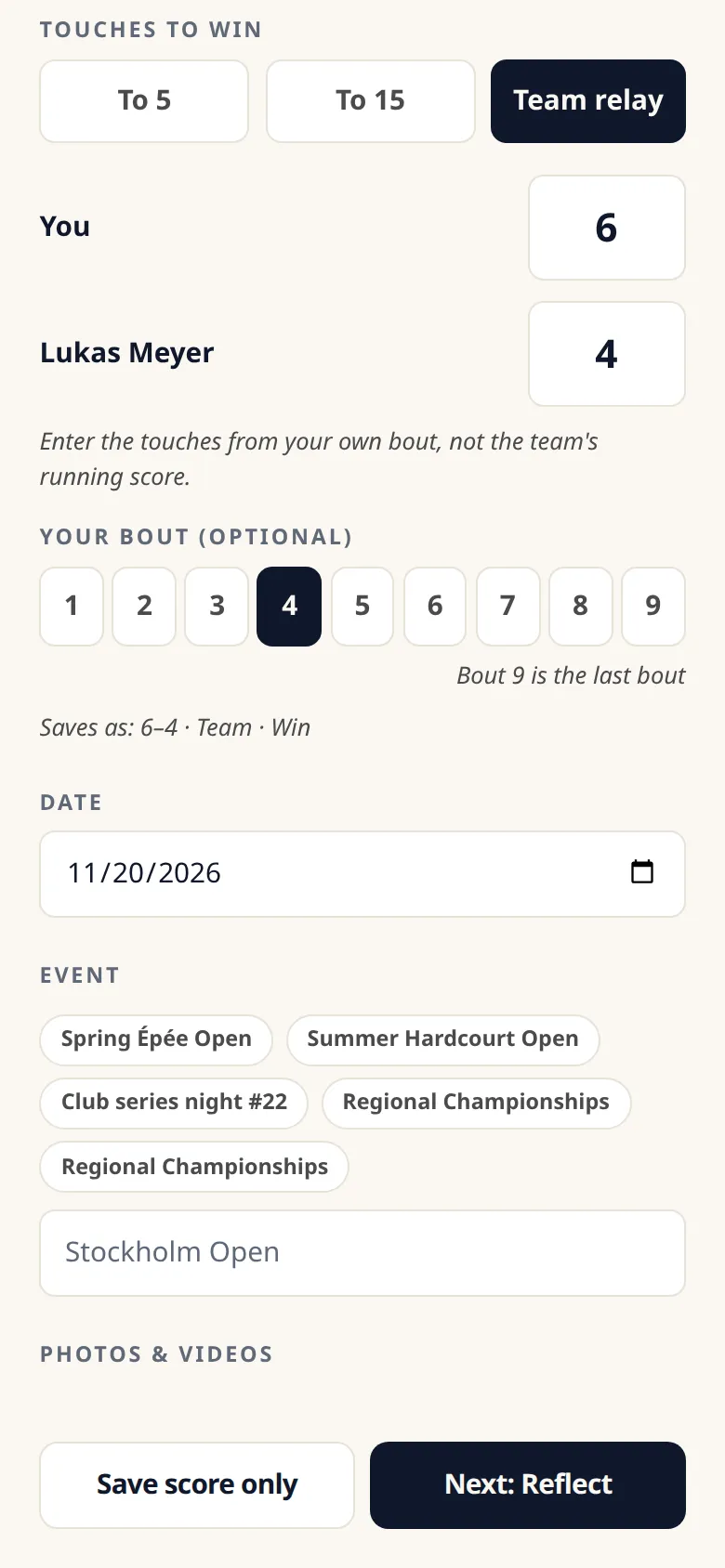
Logging doubles and team matches is free on every plan. The help section on using the journal has the details, such as the kendo team position, the judo draw and relay bout numbers.
Insights, one format at a time
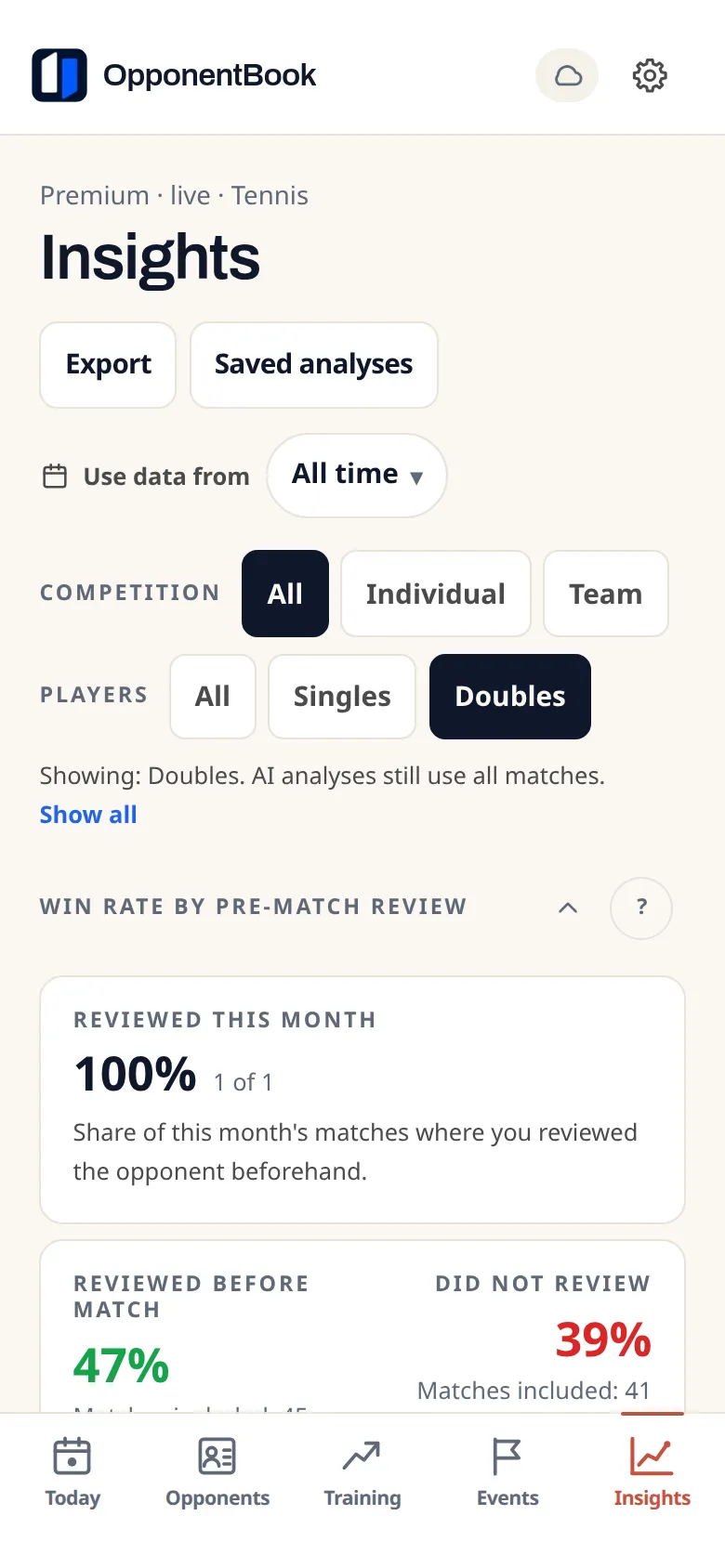
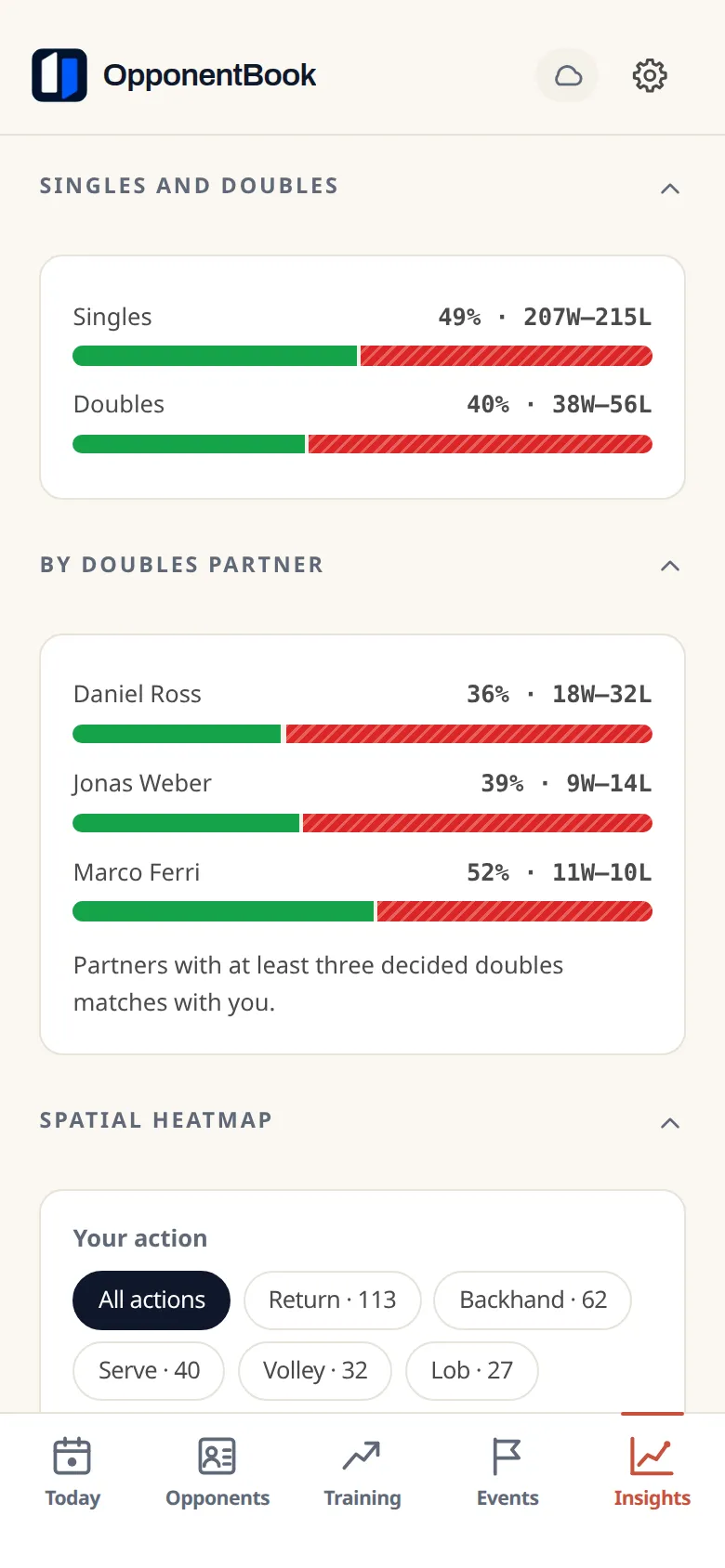
With Premium, new rows at the top of Insights narrow your match statistics to individual or team matches and, in tennis, badminton and table tennis, to singles or doubles. Three new sections go with them: Individual and team, Singles and doubles, and By doubles partner, which shows your record with each partner after at least three decided doubles matches together. AI analyses still use all your matches, and the filter resets when you restart the app. The pricing page shows what Premium includes.
Expected opponents, once you know who they are
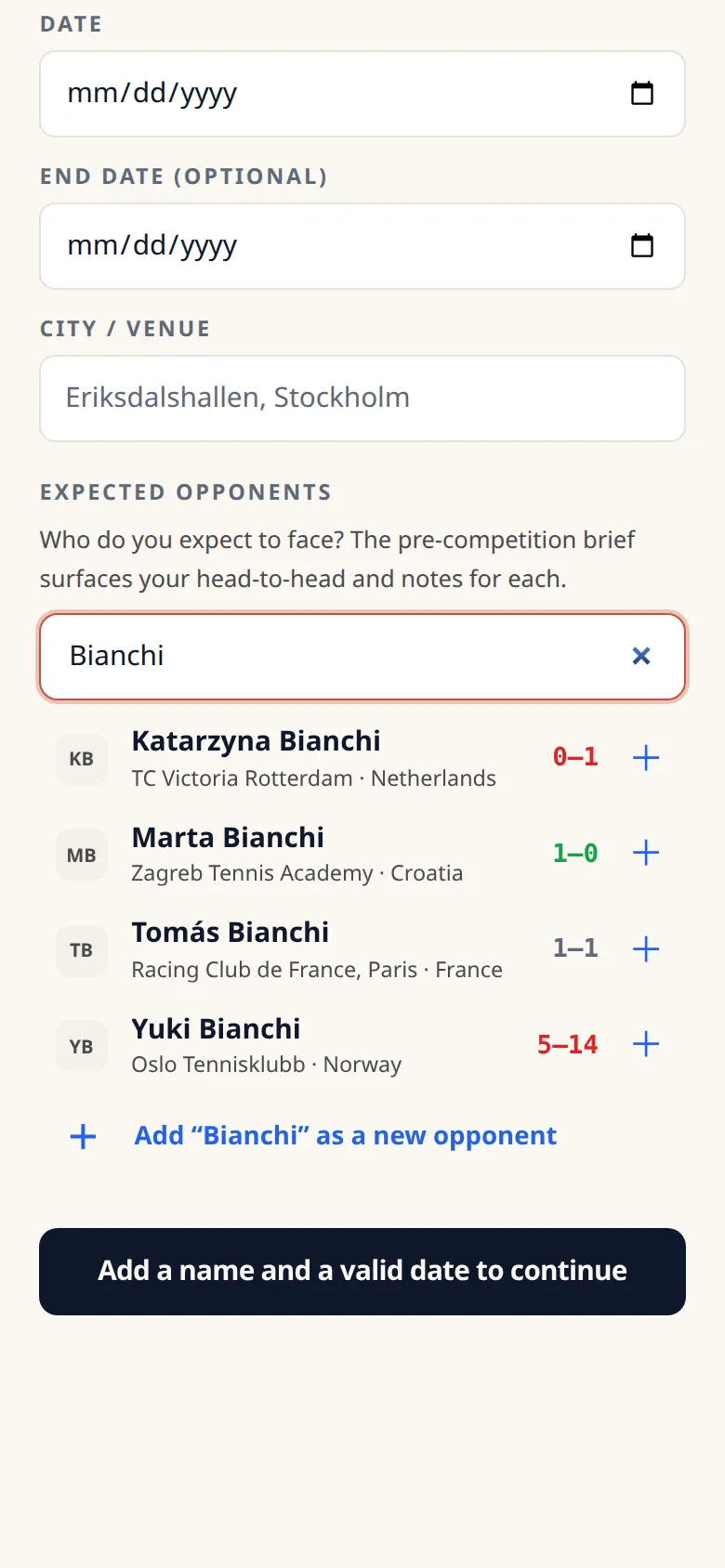
You often learn late who you will meet — for example when the pool or the draw is published, which can be the day before or the day itself. You can create the event early with its name and date, and add the opponents once you know them. On the event page, the Add expected opponents button opens a search of your opponents by name, club or country, and someone who is not in your book yet can be added as a new opponent. Every change is saved as you make it.
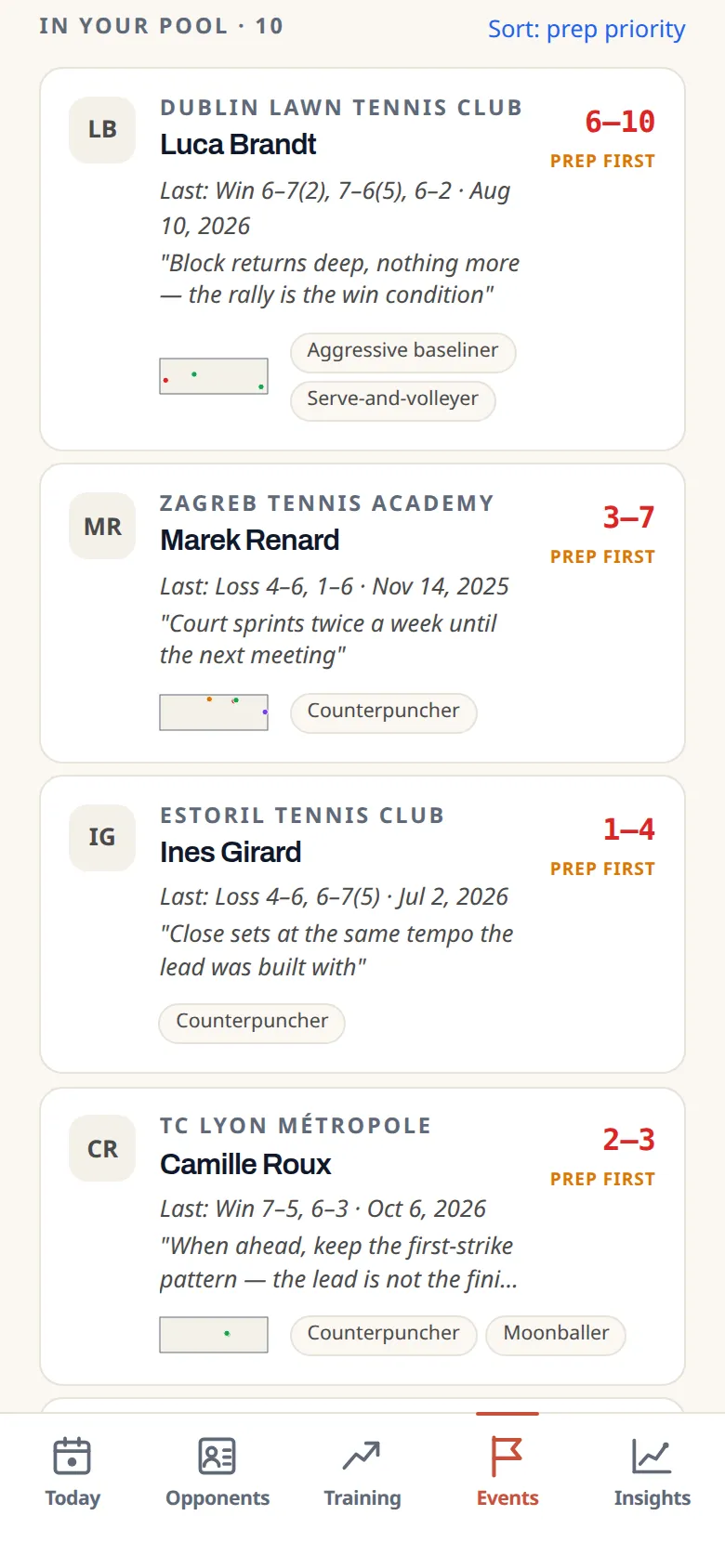
The pool is now listed in preparation order. Opponents you have lost to more often than you have beaten come first, marked Prep first, followed by those marked Even head-to-head and then Familiar. Each card shows your record against them, your last match and your note for next time.
Dictation detects the language you speak
Dictation, a Premium feature, no longer has a spoken-language setting. It works out the language from the recording, so you can dictate in the app’s language or in another one.
Also new
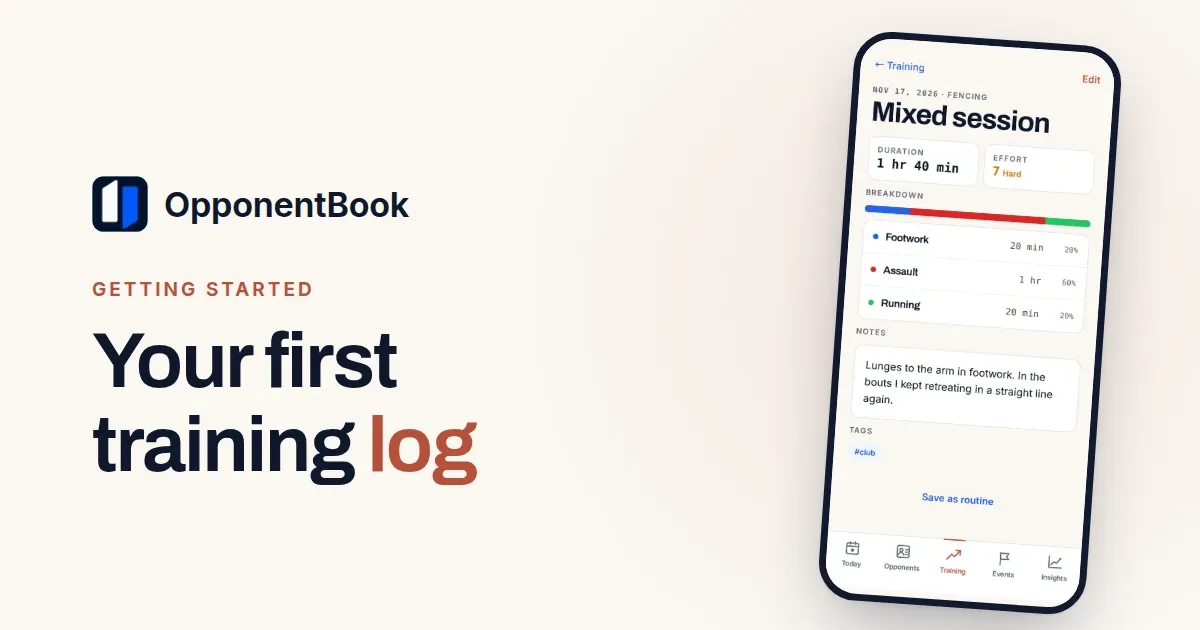
- Effort is optional. You can log a training session without an effort rating, and leave a block such as a video review unrated.
- Twelve months by default. The trend sections on Insights open on the last 12 months, unless you have chosen a period yourself.
- Periods in the PDF. When you export Performance insights, you can set each trend section’s period and choose the physical test, matching what Insights shows. The previous update introduced the PDF, along with routines.
Phone backups no longer include your journal
On Android and iPhone, the phone’s own backup and the move to a new phone no longer carry OpponentBook’s data. Your journal comes back from your own storage instead. After a restore or on a new phone, sign in and open Settings → Storage; if it says Reconnect required, reconnect your storage.
If you keep your journal on the device only, there is no automatic copy. Now and then, save a backup file from Settings → Backup and keep it somewhere other than the phone. It holds your records, not your photos or videos.
Privacy for partner names and expected opponents
Partner names, team details and expected opponents are part of your journal, which syncs through the storage you chose; OpponentBook’s account database holds no copy of it. When you request AI processing or dictation, the content it needs passes through an OpponentBook server to the AI or speech provider and is not kept there. Optional end-to-end encryption covers journal records but not photos, video or provider-visible file metadata; keep both the encryption password and the recovery code, because if you lose both, the encrypted records cannot be restored. The privacy guide explains how these parts fit together.
Mark a recent match as doubles or team
If you played doubles or a team match recently, open it and set its format. If you already know who you will meet at your next competition, open the event and add them.